


Command
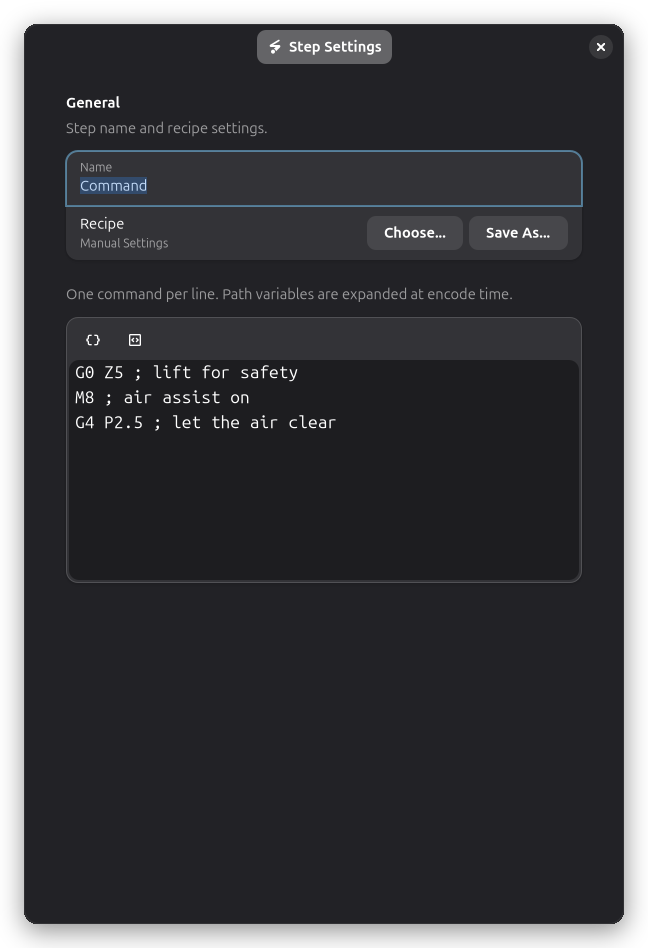
The Command step injects custom machine code into the job at exactly the position the step occupies in the layer's workflow. Use it to send commands the geometry operations do not cover: positioning the head, toggling air assist or other equipment around specific operations, or sending machine-specific codes.
Overview
The Command step:
- Holds a multi-line block of machine code, one command per line
- Emits each line verbatim at the step's position when the job is encoded
- Runs once per layer, at its workflow position — it does not act on workpieces
- Works without any workpiece in the layer, so a layer containing only a Command step can still generate a job
- Supports the same path variables as macros (see below)
The text is stored unexpanded in the project, so it travels with the .ryp file and documents
exactly what is sent where.
When to Use the Command Step
Use the Command step for:
- Pre-positioning the head (e.g. lifting Z before a cut begins)
- Turning air assist, coolant, or other equipment on and off between operations
- Sending controller-specific codes around a job
- Pausing briefly with a dwell between two operations
Don't use the Command step for:
- Repeating G-code at layer or workpiece boundaries — Hooks & Macros fire automatically and also fire on non-G-code machines
- Running programs on the computer (that is not supported in this phase)
Adding a Command Step
- Open the layer's workflow in the right panel.
- Click the Add Step button and choose Command.
- Enter the machine code into the text box, one command per line. Empty lines are skipped.
The step can be placed before, between, or after other steps, and can be used multiple times in a layer. Its position in the workflow is the position its lines take in the generated machine code.
Path Variables
Like macros, the lines can contain path variables that are resolved when the job is encoded. Unknown
variables are left untouched, and layer.* variables resolve even when the step runs in the middle
of a layer.
| Variable | Example | Description |
|---|---|---|
{machine.name} | My Laser | The active machine's name |
{layer.name} | Layer 1 | The name of the layer being processed |
{job.extents[0]} | 210.0 | The job's extent on the X axis (mm) |
{wcs_offset[0]} | 5.0 | The active work coordinate system's X offset |
For example, a comment like ; cutting {layer.name} on {machine.name} is encoded with the names
filled in.
Machine Support
The Command step is available on every machine, but the lines are emitted only for drivers that consume machine code. When the active machine's driver does not (e.g. Ruida), the step shows a warning, and its lines are not part of the generated output.