


Multi-Layer Workflow
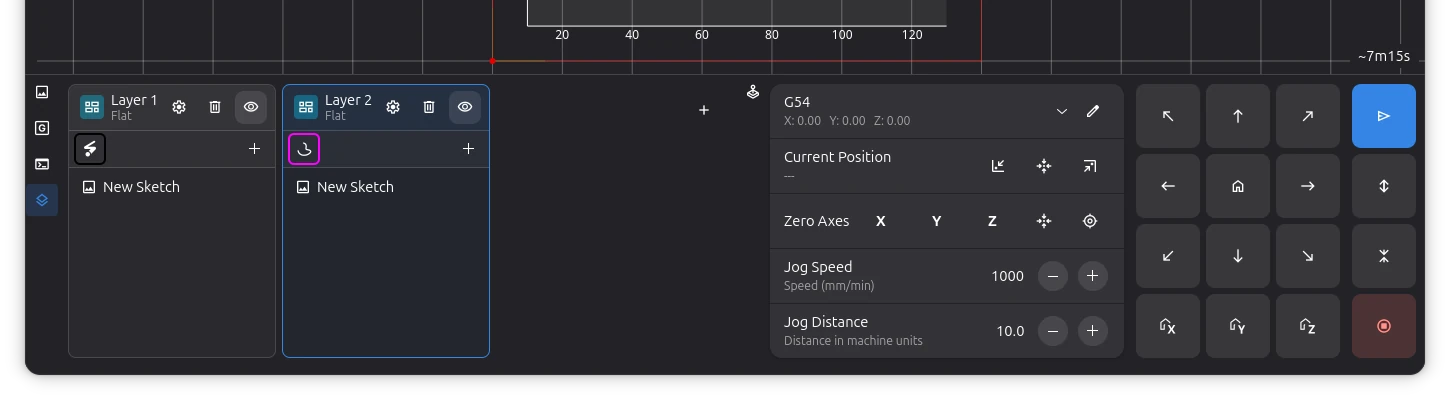
Rayforge's multi-layer system lets you organize jobs into separate processing stages. Each layer is a container for workpieces and has its own workflow — a sequence of steps, each with independent laser settings.
In many cases a single layer is enough. Each step within a layer has its own laser, power, speed, and other settings, so you can engrave and contour in the same layer. Separate layers are only needed when you want to contour different parts of one image with different settings, or when you need different WCS or rotary configurations.
Creating and Managing Layers
Adding a Layer
Click the + button in the Layers panel. New documents start with three empty layers.
Reordering Layers
Drag and drop layers in the panel to change the execution order. Layers are processed from left to right. You can use middle-click drag to pan within the layer list.
Reordering Workpieces
Workpieces within a layer can be rearranged by drag-and-drop to control their z-order. You can select multiple workpieces with Ctrl+click to toggle individual items, or Shift+click to select a range. Dragging a selection moves all selected items at once.
Selected workpieces are highlighted in the layer column and the selection stays in sync with the canvas.
Deleting a Layer
Select the layer and click the delete button. All workpieces in the layer are removed. You can undo the deletion if needed.
Layer Properties
Each layer has the following settings, available through the gear icon on the layer column:
- Name — shown in the layer header
- Color — used for rendering the layer's operations on the canvas
- Visibility — the eye icon toggles whether the layer is shown on the canvas and in previews. Hidden layers are still included in the generated G-code.
- Coordinate System (WCS) — assigns a Work Coordinate System to this layer. When set to a specific WCS (e.g. G54, G55), the machine switches to that coordinate system at the start of the layer. Select Default to use the global WCS instead.
- Rotary Mode — enables rotary attachment mode for this layer, allowing you to mix flat-bed and cylindrical work in the same project. Configure the rotary module and object diameter in the layer settings.
Layer Workflows
Each layer has a workflow — a sequence of steps displayed as a pipeline of icons in the layer column. Each step defines a single operation (e.g. contour, raster engrave) with its own laser, power, speed, and other settings.
Click a step to configure it. Use the + button in the pipeline to add more steps to a layer. Steps can be reordered by drag-and-drop.
Vector File Import
When importing vector files (SVG, DXF, PDF), the import dialog offers three ways to handle layers from the source file:
- Map to existing layers — imports each source layer into the corresponding document layer by position
- New layers — creates a new document layer for each source layer
- Flatten — imports everything into the active layer
When using Map to existing layers or New layers, the dialog shows a list of layers from the source file with toggle switches to select which ones to import.
Assigning Workpieces to Layers
Drag and drop: Select workpiece(s) in the canvas or layer panel and drag them to the target layer. Multi-selection with Ctrl+click and Shift-click is supported, and you can drag items across layers.
Cut and paste: Cut a workpiece from the current layer (Ctrl+X), select the target layer, and paste (Ctrl+V).
Context menu: Right-click a workpiece in the layer tab to open a context menu with options to move it to another layer, delete it, or open its properties.
Execution Order
During a job, layers are processed left to right. Within each layer, all workpieces are processed before moving to the next layer. The standard workflow is to engrave first and cut last, so pieces stay in place during engraving.
Related Pages
-
Operations - Operation types for layer workflows
-
Macros & Hooks - Layer-level hooks for automation
-
3D Preview - Visualize layer stack
-
Asset Browser - Managing assets with context menus