


Main Window
The Rayforge main window is your primary workspace for creating and managing laser jobs.
Window Layout
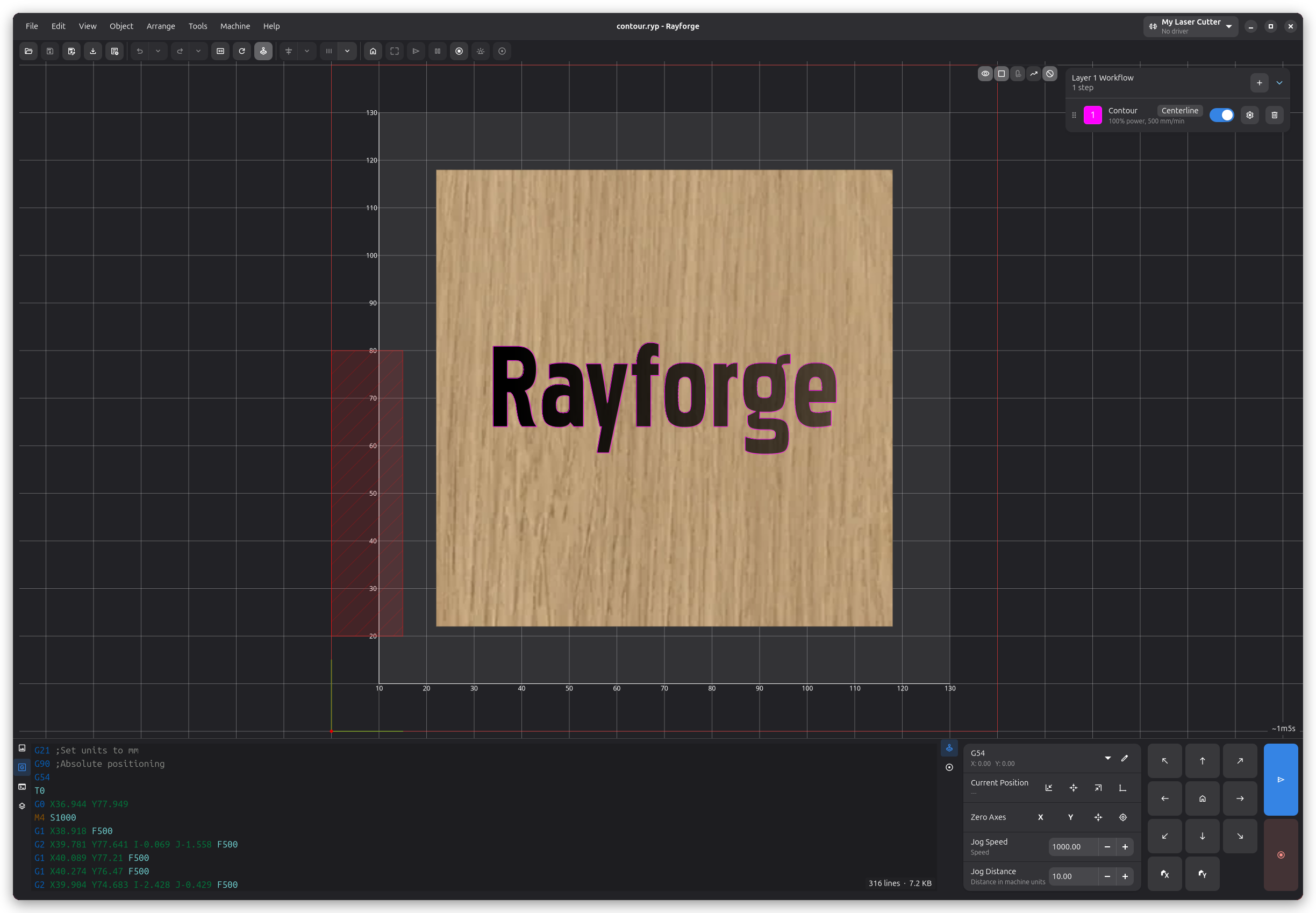
1. Menu Bar
Access all Rayforge functions through organized menus:
- File: Open, save, import, export, and recent files
- Edit: Undo, redo, copy, paste, preferences
- View: Zoom, grid, rulers, panels, and view modes
- Object: Add, edit, and manage operations
- Machine: Connect, jog, home, start/stop jobs
- Help: About, Donate, Save Debug Log
2. Toolbar
Quick access to frequently used controls:
- Machine dropdown: Select your machine, view connection status, and see ETA during jobs
- WCS dropdown: Select the active Work Coordinate System (G53-G59)
- Simulation toggle: Enable/disable job simulation mode
- Focus laser: Toggle laser focusing mode
- Job controls: Home, Frame, Send, Hold, and Cancel buttons
The machine dropdown shows your machine's connection status and current state (e.g. Idle, Run) directly in the toolbar. During job execution, it also displays an estimated time remaining.
The WCS dropdown allows you to quickly switch between coordinate systems. See Work Coordinate Systems for more information.
Visibility toggles have moved to overlay buttons on the canvas itself, so they are always close at hand while you work. On the 2D canvas these toggle the workpiece base images, holding tabs, the camera feed (when a camera is enabled), stock blocks, travel moves, and no-go zones. The 3D View has its own set of toggles for the workpiece image, machine model, grid, ops underlay, stock, travel moves, and no-go zones. The no-go zone toggle only appears when your machine has at least one no-go zone configured.
3. Canvas
The main workspace where you:
- Import and arrange designs
- Preview toolpaths
- Position objects relative to machine origin
- Test frame boundaries
Canvas Controls:
- Pan: Middle-click drag or space + drag
- Zoom: Mouse wheel or ctrl+"+" / ctrl+"-"
- Reset View: ctrl+0 or View → Reset Zoom
4. Side Panel
The side panel is a floating overlay on the right side of the canvas. It shows the workflow of the active layer as a vertical list of steps. Each step displays its name, a summary (e.g. power and speed), and buttons for visibility, settings, and deletion. Use the + button to add new steps. Steps can be reordered by drag-and-drop.
Clicking the settings button on a step opens a dialog where you configure the operation type, laser power, cut speed, air assist, beam width, and post-processing options. Slider values are editable — click on a value next to a slider and type the exact number you want.
The panel can be moved out of the way when not needed.
5. Bottom Panel
The Bottom Panel provides dockable tabs that can be rearranged by dragging and split into multiple columns. The available tabs include:
- Layers: Shows all layers as side-by-side columns. Each column has a header with the layer name and controls, a compact horizontal pipeline of step icons representing the workflow, and a list of workpieces. Layers and workpieces can be reordered by drag-and-drop.
- Assets: Lists stock items and sketches in your document.
- Console: Interactive terminal for sending G-code and monitoring machine communication.
- G-code Viewer: Displays the generated G-code with syntax highlighting.
- Controls: Jog controls for manual positioning and WCS management.
The estimated job time is shown in the layer list header.
See Bottom Panel for detailed information.
Window Management
Panels
Show/hide panels as needed:
- Bottom Panel: View → Bottom Panel (ctrl+l)
Full Screen Mode
Focus on your work with full screen:
- Enter: f11 or View → Full Screen
- Exit: f11 or esc
Customization
Customize the interface in Edit → Settings:
- Theme: Light, dark, or system
- Units: Millimeters or inches
- Grid: Show/hide and configure grid spacing
- Rulers: Show/hide rulers on canvas
Related Pages:
- Work Coordinate Systems - WCS
- Canvas Tools - Tools for manipulating designs
- Bottom Panel - Manual machine control, status, and logs
- 3D View - Visualize toolpaths in 3D