


First Time Setup
After installing Rayforge, you'll need to configure your laser cutter or engraver. This guide walks you through creating your first machine with the configuration wizard and establishing a connection.
Step 1: Launch Rayforge
Start Rayforge from your application menu or by running rayforge in a terminal. On first launch —
when no real machine has been configured yet — the configuration wizard opens automatically so you
can set up your machine without hunting through menus. (You can always open it later from Settings
→ Machines → Add Machine.)
Step 2: Create a Machine with the Wizard
Navigate to Settings → Machines or press ctrl+comma to open the settings dialog, then select the Machines page.
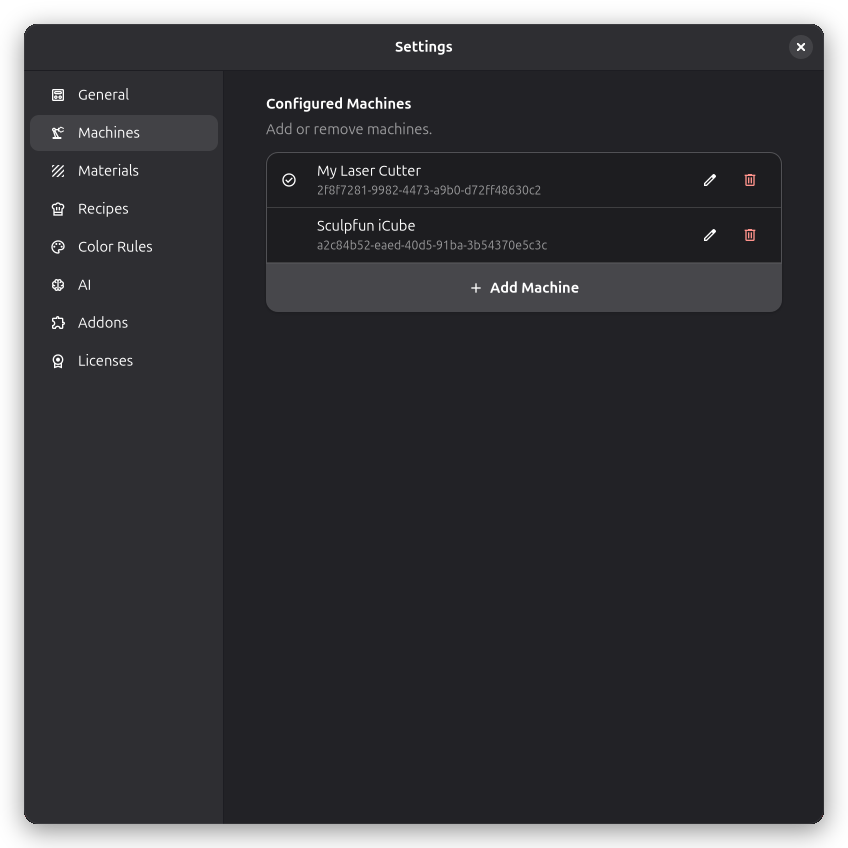
Click Add Machine to open the machine picker.
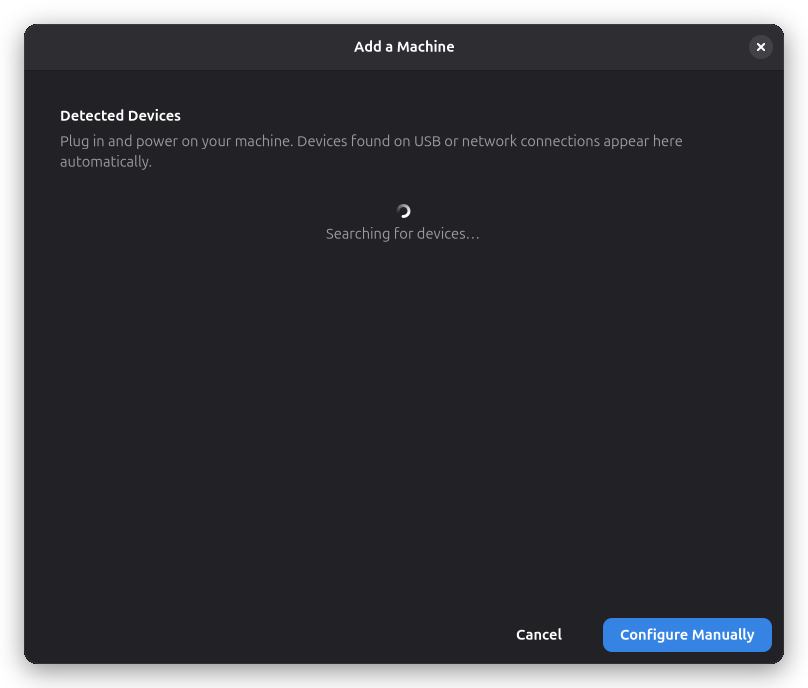
Permission Check
Before discovery begins, the wizard checks that Rayforge can actually open your serial ports and cameras. If a device is present but access is missing, a permissions page appears first, explaining how to fix it on your platform:
- Snap installations: grant the
serial-portinterface (and the camera interface if needed) — the exact commands are shown with a one-click copy button. - Non-Snap Linux: add your user to the
dialoutgroup so the serial device node is accessible.
Once access is in place, the wizard continues automatically.
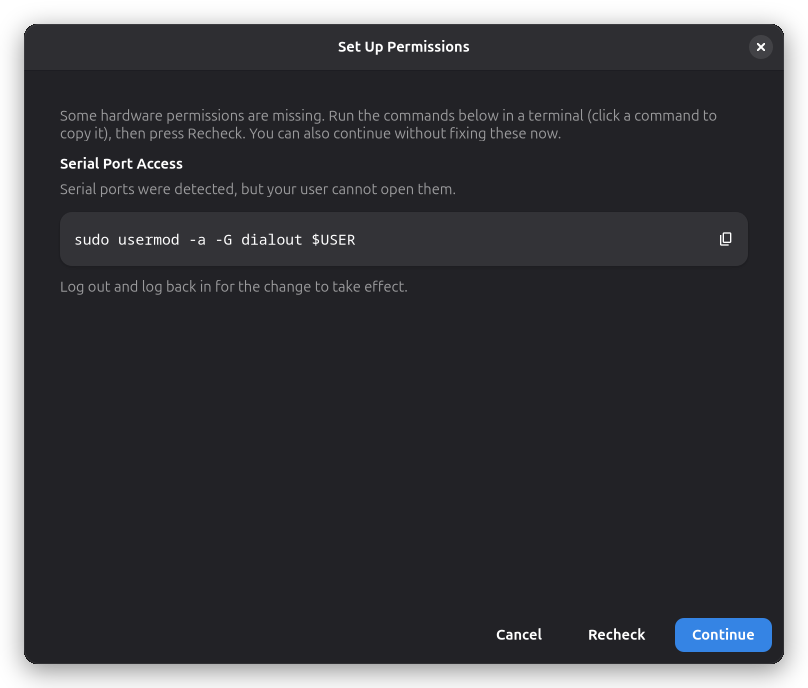
Discover Devices Automatically
The wizard can discover devices for you instead of requiring you to pick a starting point and fill everything in by hand:
- USB serial devices are listed as they appear.
- Network devices are discovered via mDNS: OctoPrint servers and ESP3D boards appear alongside USB serial devices.
- Discovered devices are matched to built-in profiles when a confident match is found, so you can often just confirm the detected settings rather than entering them.
- GRBL auto-selects the correct G-code dialect from the firmware's compile flags, and OctoPrint/Smoothieware are probed over the network.
- Devices you have already configured are shown as read-only so you don't accidentally create duplicates.
Click a discovered device to pre-fill the wizard, or pick a starting point manually as described below.
The configuration wizard adapts which steps it shows to your choices:
- Picking a built-in profile pre-fills the controller, work area, and head — the wizard skips straight to the rotary, camera, and review steps
- Importing a profile keeps the hardware and head steps so you can correct anything the import got wrong
- Device Not Listed walks you through every step, including the controller and AI-spec-lookup steps
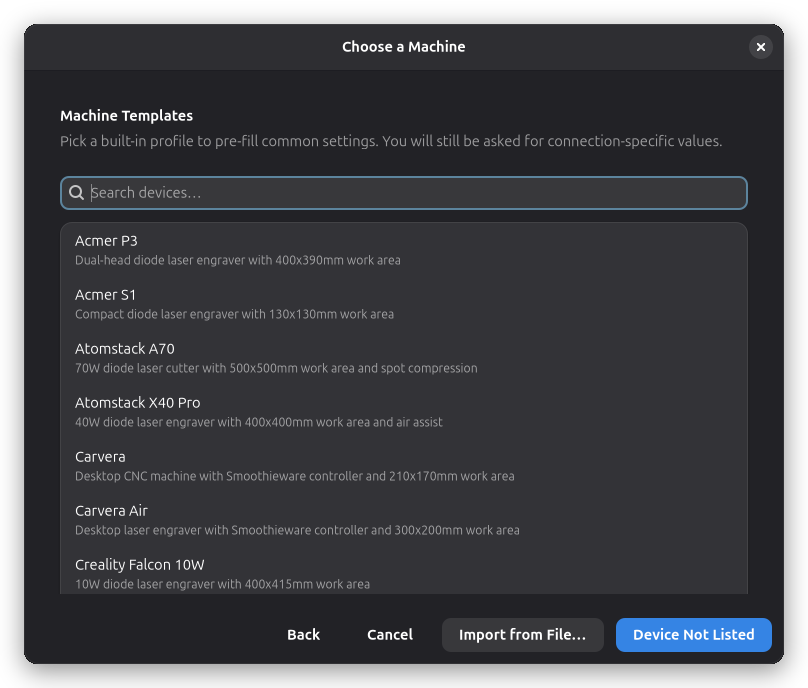
Pick a Starting Point
Choose a built-in device profile to pre-fill the controller, work area, and head settings, or click Device Not Listed to configure everything manually. You can also Import from File… a previously exported profile or a LightBurn device profile (.lbdev) with camera calibration and laser settings.
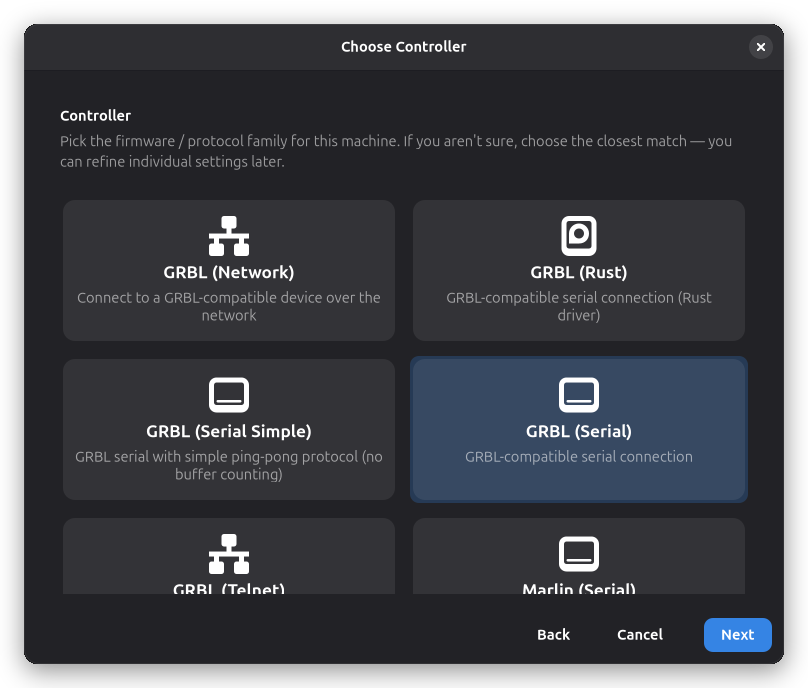
Choose a Controller
Pick the firmware or protocol family that matches your machine's controller board (GRBL, Marlin, Smoothie, Ruida, OctoPrint, …). Choose None — G-code export only if you only want to export G-code to files and never drive a physical machine. This step is skipped when you start from a built-in profile or an import.
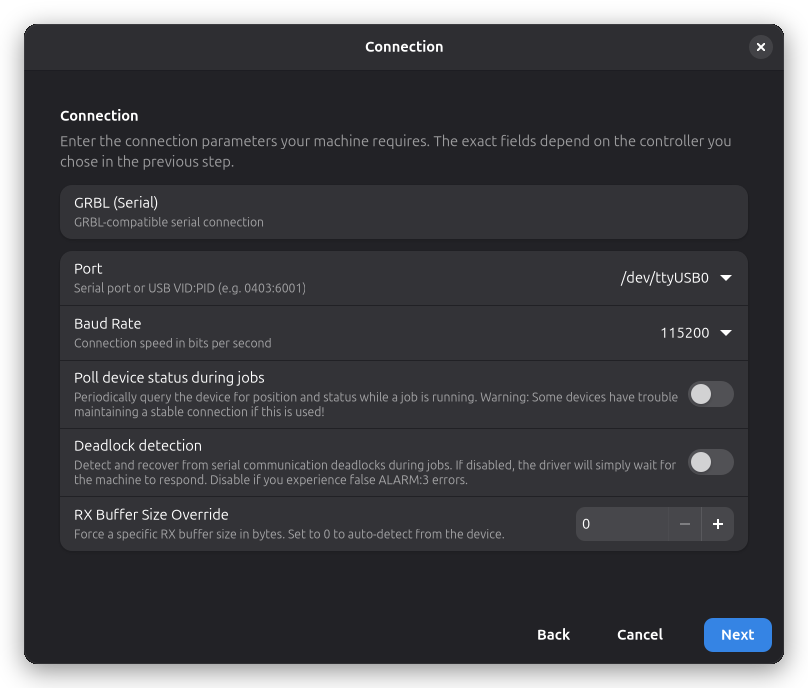
Connection
Enter the connection parameters your machine requires. The exact fields depend on the controller you chose:
- Serial drivers — USB device path (e.g.
/dev/ttyUSB0on Linux,COM3on Windows) and baud rate - Network drivers — host address and port (e.g.
192.168.1.100) - OctoPrint — server URL and API key
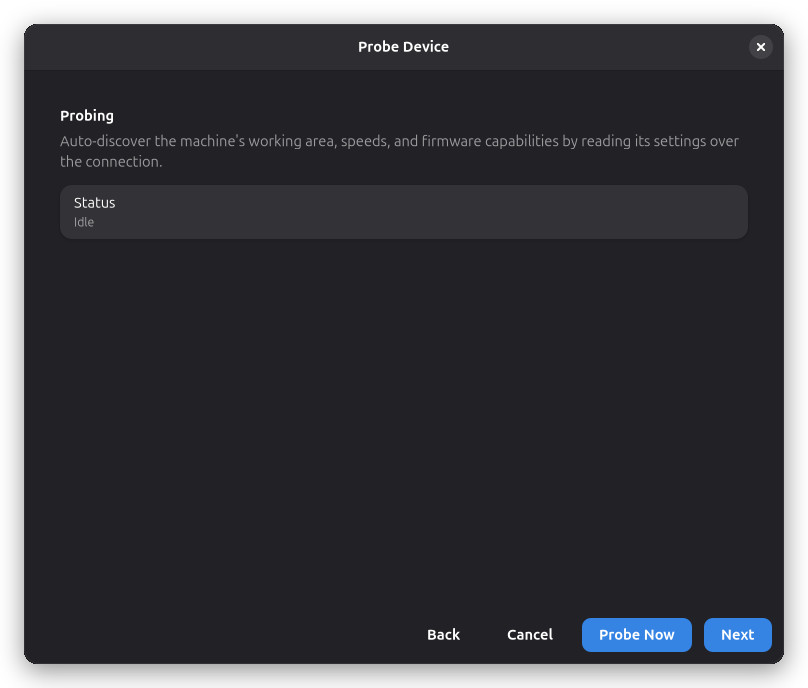
Discover the Device
When your controller supports it, the wizard offers to connect to the device and read its configuration automatically — work area, speeds, acceleration, and firmware capabilities. This works over USB serial and over the network (mDNS discovery for OctoPrint and ESP3D). Click Probe Now to auto-detect these values, or use Next to enter them by hand in the following steps.
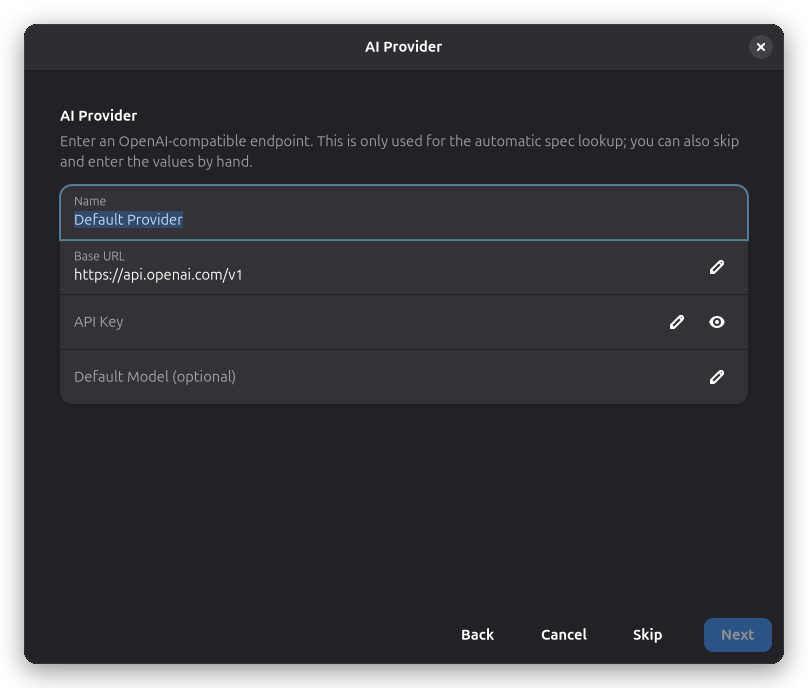
AI Provider
Shown only when no AI provider is configured yet. Enter an OpenAI-compatible endpoint (base URL and API key) so the next step can look up specifications for known commercial machines. Skip this step to enter the values by hand.
AI Spec Lookup
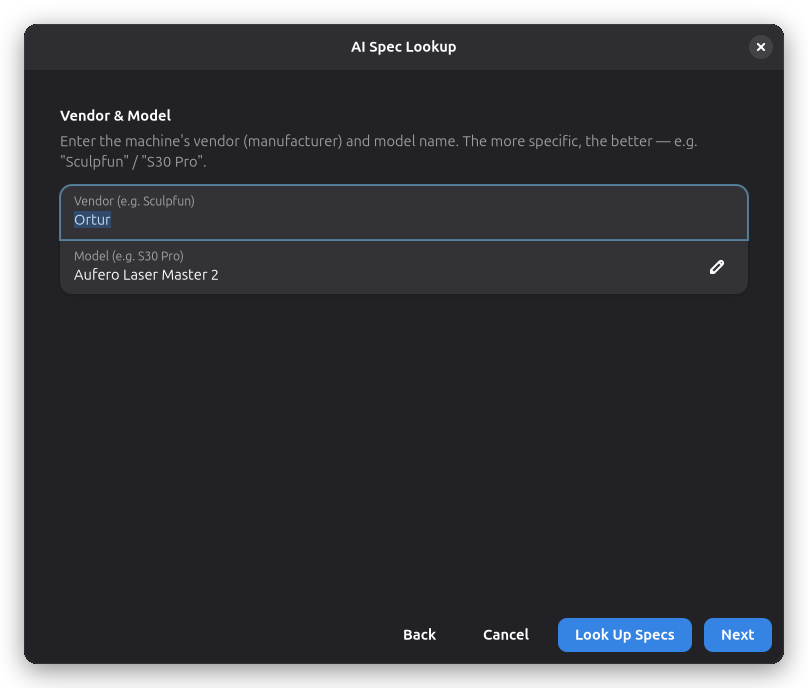
If your machine is a known commercial model, the AI can pre-fill its specifications from the manufacturer's documentation. Enter the vendor and model, then click Look Up Specs. Suggested values appear as switch rows and start accepted — turn off anything you don't want applied.
Hardware
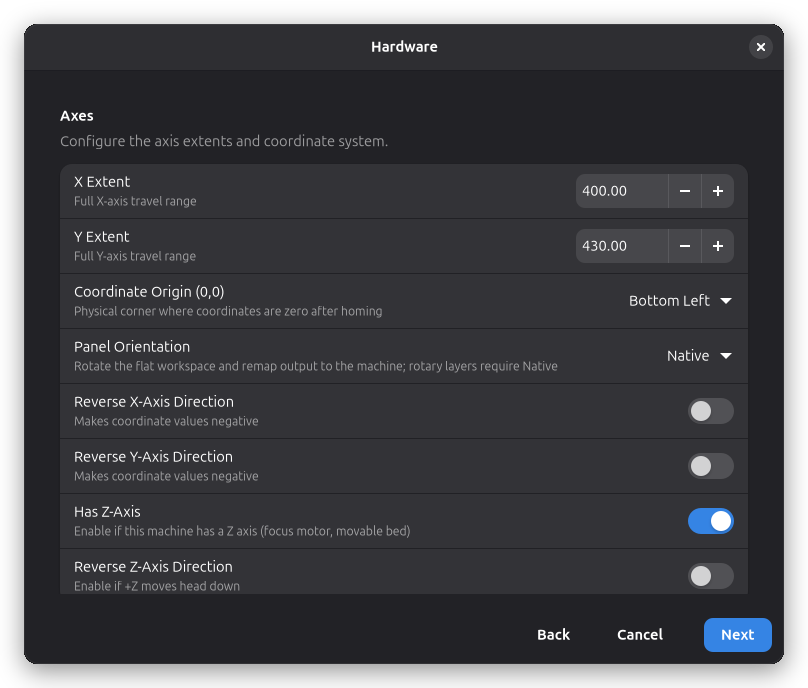
Configure the machine's physical setup:
- Axes — X/Y work-area extents and the coordinate origin (0,0) corner
- Axis direction — reverse an axis if coordinates come out negative
- Z-Axis — whether the machine has a Z axis (focus motor, movable bed); when absent, no Z moves are generated and the 3D canvas layers content at the engrave plane
- Panel orientation — rotate the flat workspace as it is presented on screen (Native, Rotate Left, Rotate Right); rotary layers require Native
- Work Area — margins around the unusable space of the work surface
- Soft Limits — optional safety bounds for jogging
- Speeds — max travel speed, max cut speed, and acceleration
- Behavior — home on start and single-axis homing
Head
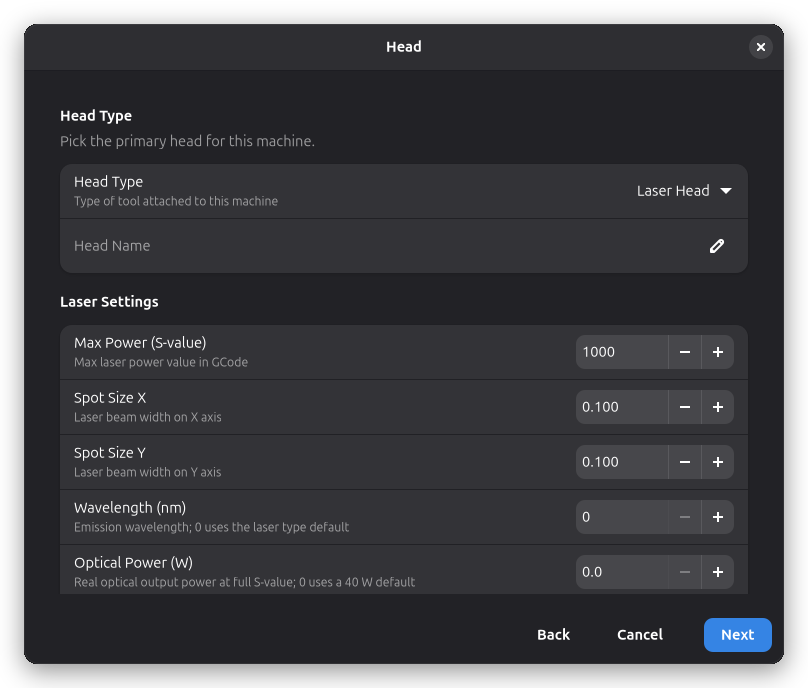
Declare what's attached to the gantry — a laser or a spindle head — and set its parameters. For a laser: max power (S-value), spot size, PWM frequency, and focal distance. For a spindle: max and min RPM.
Rotary Module
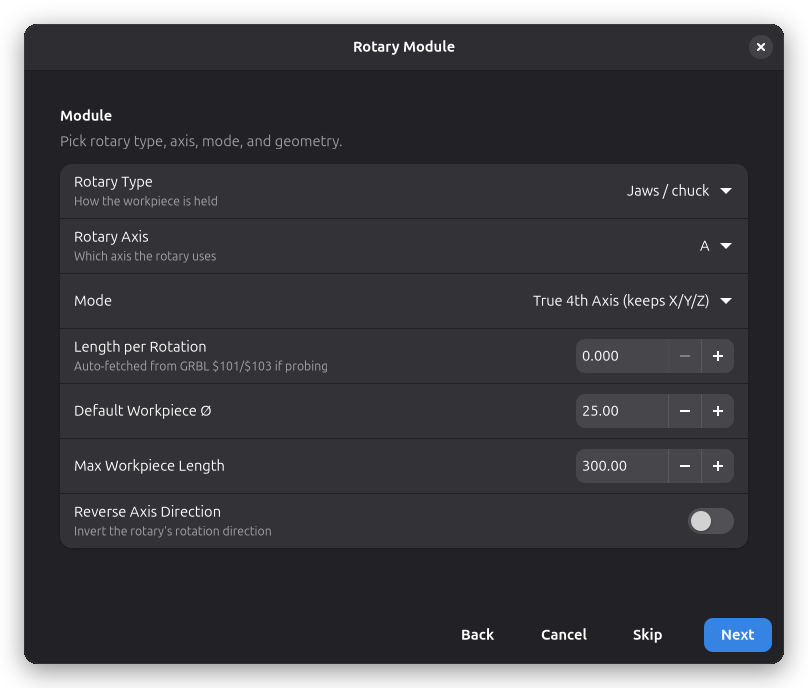
Optionally set up a rotary attachment: type (jaws or rollers), axis (A/B/C), mode (true 4th axis vs. axis replacement), geometry, and reverse-direction flag. Skip this step to add a rotary module later from machine settings.
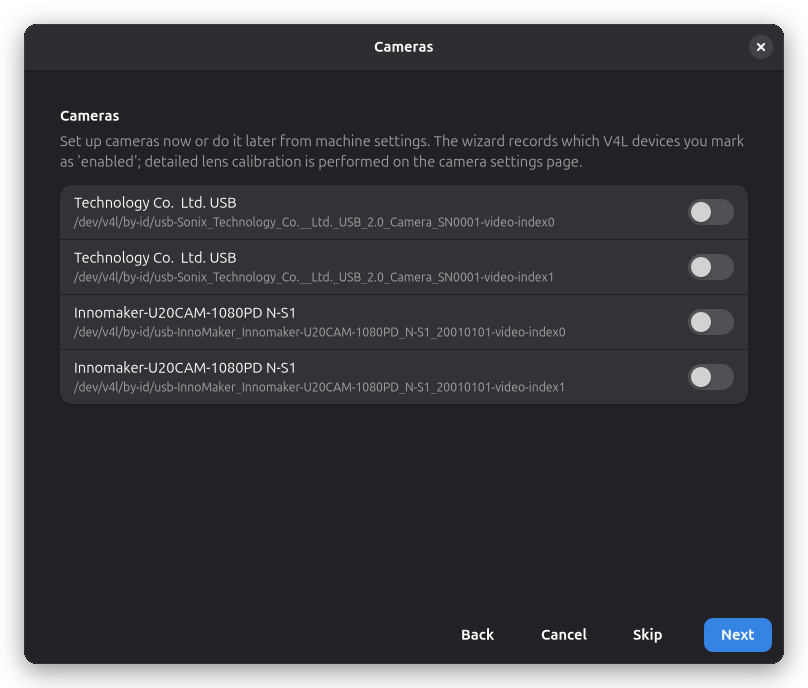
Cameras
Optionally enable any cameras you want to use for preview and alignment. When you enable a camera and continue, the camera wizard opens to guide you through image settings, lens calibration, and image alignment. You can skip this and set up cameras later from the machine's camera settings.
Review & Name
Give the machine a name and review a summary of everything you've configured — driver, connection, work area, speeds, heads, rotary modules, and cameras. The wizard also surfaces any warnings, such as a missing driver or an unset work area. If the chosen device profile ships setup guidance, it is shown on this page as well and remains available afterwards on the machine's Notes page.
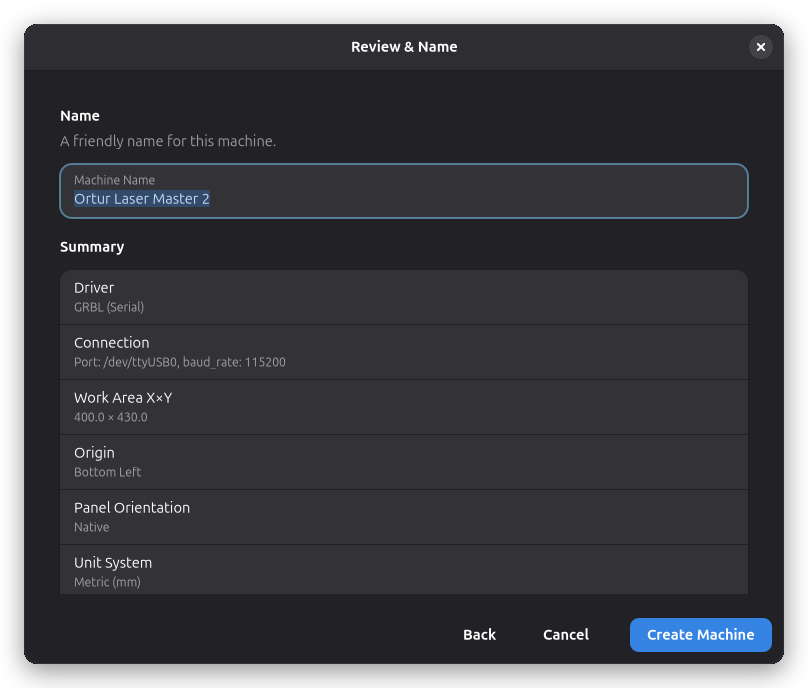
Click Create Machine to finalize. The Machine Settings dialog opens for your new machine, where you can adjust any of the settings the wizard pre-filled. See the Machine Setup pages for details.
Step 3: Automatic Connection
Rayforge automatically connects to your machine when the application starts (if the machine is powered on and connected). You don't need to manually click a connect button.
The connection status is displayed in the bottom-left corner of the main window with a status icon and label showing the current state (Connected, Connecting, Disconnected, Error, etc.).
If your machine shows "Connected" status, you're ready to start using Rayforge!
Troubleshooting Connection Issues
Device Not Found
-
Linux (Serial): Add your user to the
dialoutgroup. This is required for both Snap and non-Snap installations on Debian-based distributions to avoid AppArmor DENIED messages:sudo usermod -a -G dialout $USERLog out and back in for changes to take effect.
-
Snap Package: In addition to the
dialoutgroup above, ensure you've granted serial port permissions:sudo snap connect rayforge:serial-port -
Windows: Check Device Manager to confirm the device is recognized and note the COM port number.
Connection Refused
- Verify the IP address and port number are correct
- Ensure your machine is powered on and connected to the network
- Check firewall settings if using network connection
Machine Not Responding
- Try a different baud rate (some devices use
9600or57600) - Check for loose cables or poor connections
- Power cycle your laser cutter and try again
For more help, see Connection Issues.
Next: Quick Start Guide →