


Material Test Grid
Every material — and often every color and thickness of the same material — responds differently to laser power and speed. The Material Test Grid takes the guesswork out of finding the right combination: it generates a pattern of test cells in which each cell is engraved or cut with a slightly different setting, all in a single job. After one run you can see at a glance which combination produces the result you want.
Create one via Tools → Create Material Test Grid. Rayforge adds a special workpiece to the canvas along with a matching operation, and you configure the grid in its settings dialog.
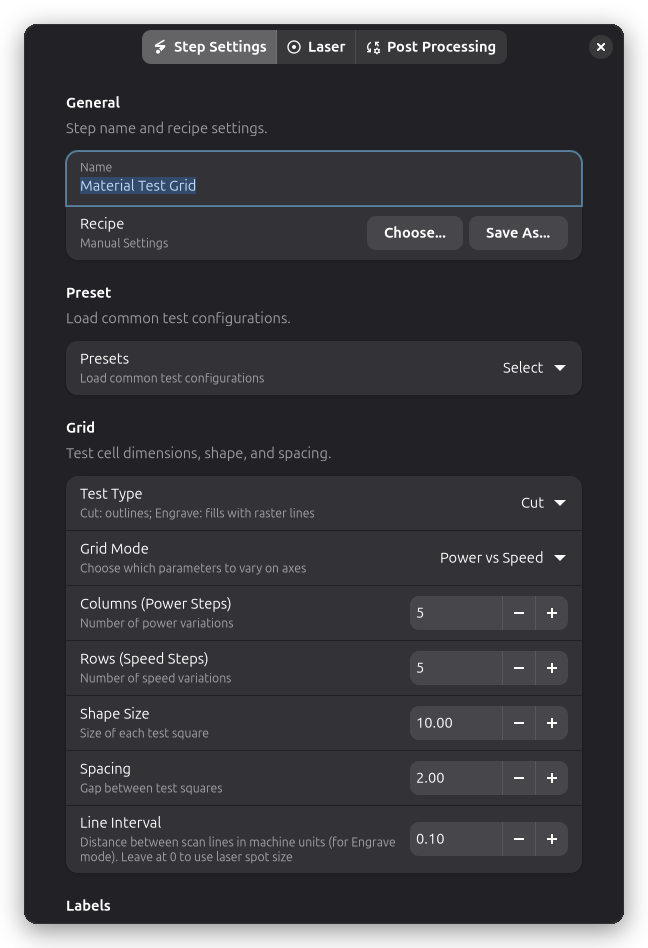
Presets
The settings dialog offers presets for common laser types. They fill in a sensible speed range, power range, and test type so you can start with a reasonable baseline:
| Preset | Speed Range | Power Range | Test Type |
|---|---|---|---|
| Diode Engrave | 1000-10000 mm/min | 10-100% | Engrave |
| Diode Cut | 100-5000 mm/min | 50-100% | Cut |
| CO2 Engrave | 3000-20000 mm/min | 10-50% | Engrave |
| CO2 Cut | 1000-20000 mm/min | 30-100% | Cut |
A preset is only a starting point — every value remains adjustable afterwards, and speed ranges are automatically limited to what your machine can do.
Grid Modes
A test grid varies two parameters at once: one across the columns and one down the rows. The grid mode decides which two. Power vs Speed is the default and covers the most common question — power across the columns, speed down the rows.
Power vs Passes and Speed vs Passes keep one of the two fixed and vary the number of passes instead, which is useful for cutting thicker stock. Speed vs Offset is a special calibration mode for bidirectional engraving: it varies the horizontal scan offset so you can dial out row-to-row misalignment. Because that only makes sense for raster work, selecting it switches the grid to Engrave and widens the line spacing so any misalignment is easy to see. Within each row the power is scaled along with the speed, so all cells stay visually comparable.
Configuring the Grid
The settings dialog groups the parameters into three sections.
The Grid section controls the test itself. The test type determines whether each cell cuts the outline of a square or fills it with raster lines. The grid dimensions set how many columns and rows to test — each column represents one step of the mode's first parameter and each row one step of the second, from the minimum to the maximum of the range you enter. Between 2 and 20 steps are allowed per axis; 5×5 is a good default. Shape size (10 mm by default) and spacing (2 mm by default) determine how large the grid becomes. For the Engrave test type, the line interval controls the distance between scan lines — smaller values fill more densely but take longer. Leave it at zero to use your laser's spot size, which is a good match for most engraving.
The Labels section controls the annotations engraved next to the grid. Labels are on by default and are engraved first, so the test pattern cannot obscure them. They get their own power (10% by default) and speed (1000 mm/min by default), and speed values are shown in your preferred display unit.
The Parameters section holds the ranges the grid varies — speed, power, passes, or offset, depending on the selected mode. Modes that keep a parameter fixed (for example the speed in Power vs Passes) let you set that constant here as well.
Understanding the Layout
In the default Power vs Speed mode, power increases from left to right and speed from top to bottom:
                   Power (%)
                 10       55       100
Speed      100  [  ]     [  ]     [  ]
(mm/min)   300  [  ]     [  ]     [  ]
           500  [  ]     [  ]     [  ]
Labels on the left and top edges show the exact value of every row and column, so you never have to count cells.
The overall size follows directly from the grid dimensions: each axis is steps × shape size + (steps − 1) × spacing, plus room for the labels on the left and top (at most 15 mm, and only when labels are enabled). A 5×5 grid of 20 mm squares with 5 mm spacing is 120 mm square without labels and 135 mm with them.
How the Grid Runs
Cells deliberately do not execute in reading order. Rayforge runs them in a risk-optimized order: the highest speed first, the lowest power within each speed, and the fewest passes within each power. Slow, high-power combinations are the ones most likely to char the material or start a fire, so they run last. This ordering is intentional and cannot be changed.
Running the Test
Load the material you want to characterize — scrap, not your final workpiece — and focus the laser as you would for a real job, since focus distance changes the result. Start the job and stay with the machine: if a cell starts charring badly or smoking excessively, stop the job rather than let it finish.
When the test is done, examine each cell. If engraving comes out too light, move toward more power or slower speed; if it comes out dark or charred, move toward less power or higher speed. For cut tests, look for the cell that cuts through cleanly with the least charring. To narrow in on the sweet spot, run a second, finer grid: if a coarse 5×5 test found its best cell around 40% power and 4000 mm/min, a follow-up grid spanning 35-45% and 3000-5000 mm/min will pinpoint it.
Instead of keeping a notebook of winning settings, store them as a recipe: name it (for example "3 mm Plywood Cut"), bind it to the machine, operation, material, and thickness you tested, and Rayforge will suggest exactly those settings the next time you cut the same material.
Advanced Usage
Material test grids are ordinary workpieces, so they combine freely with other operations. A common pattern is to add a contour operation around the finished grid and cut the test piece free from the stock after engraving completes.
Running the same grid configuration on different materials is a quick way to build up a library of known-good settings — and recipes make that library searchable by material and thickness later.
Tips & Best Practices
A few habits make test results more reliable:
- Start from a preset and adjust from there rather than configuring from scratch.
- Give the cells some room: squares of 15-20 mm are much easier to judge than tiny ones.
- Change one variable at a time when narrowing down — a fine grid that varies both axes widely is hard to interpret.
- Let the material cool down between consecutive tests on the same piece.
- Use the same focus distance for every test, including the final job.
And the usual laser safety rules apply doubly to test grids, which intentionally explore unfamiliar territory:
- Never leave a running test unattended.
- Start with conservative power ranges and work upward.
- Make sure fume extraction is working before you start.
- Keep a fire extinguisher within reach.
Troubleshooting
The cells run in a strange order. That is the risk-optimized execution order described in How the Grid Runs — fastest and weakest combinations first. It is intentional.
Results are inconsistent between runs. Make sure the material lies flat and is secured, that focus is identical across the whole grid, and that your power supply delivers stable power. If only one region of the grid looks off, the material itself may be uneven.
Related Topics
- 3D Preview - Preview test execution before running
- Recipes - Reuse your test results automatically
- Engrave - Understanding engrave operations
- Contour Cutting - Understanding cut operations