


Frame Outline
Frame Outline creates a simple rectangular cutting path around your entire design. It's the quickest way to add a clean border or cut your work free from the material sheet.
Overview
Frame Outline operations:
- Create a rectangular boundary around all content
- Add configurable offset/margin from the design
- Support kerf compensation for accurate sizing
- Work with any combination of objects on the canvas
When to Use Frame Outline
Use frame outline for:
- Adding a decorative border around your design
- Cutting your work free from the material sheet
- Creating a simple rectangular boundary
- Quick framing without complex path calculations
Don't use frame outline for:
- Irregular shapes around multiple objects (use Shrink Wrap instead)
- Cutting individual parts (use Contour instead)
- Following the exact shape of your design
Creating a Frame Outline Operation
Step 1: Arrange Your Design
- Place all objects on the canvas
- Position them where you want them relative to the frame
- The frame will be calculated around the bounding box of all content
Step 2: Add Frame Outline Operation
- Menu: Operations → Add Frame Outline
- Right-click: Context menu → Add Operation → Frame Outline
Step 3: Configure Settings
Configure the frame parameters:
- Power & Speed: Match your material's cutting requirements
- Offset: Distance from content edge to frame
- Path Offset: Inside, outside, or centerline cutting
Key Settings
The step settings dialog has three tabs: Step Settings, Laser, and Post Processing. Settings are described in tab order below.
Geometry
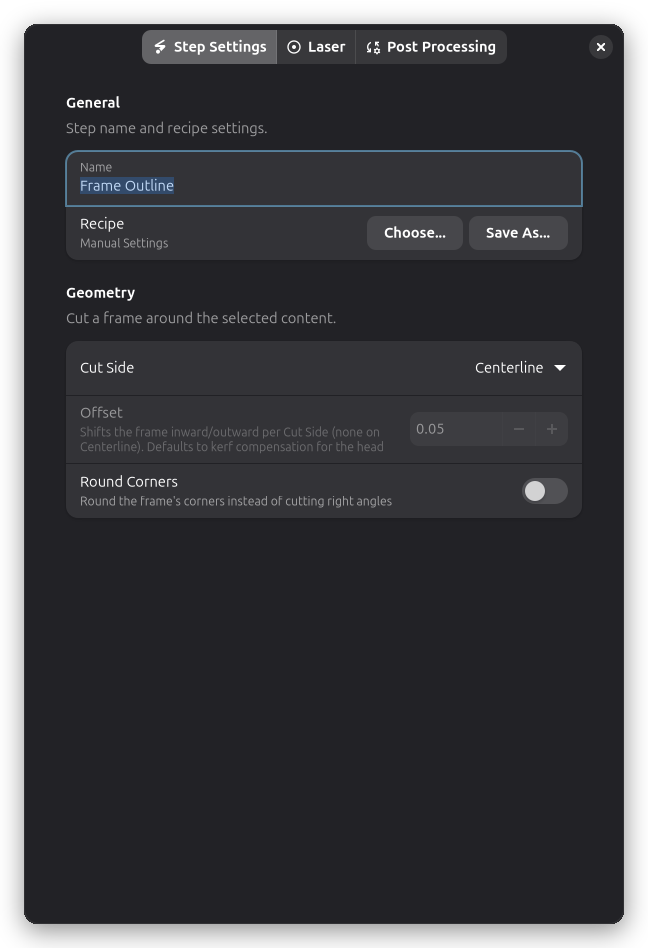
The Geometry group on the Step Settings tab controls the frame's shape.
Cut Side
Controls where the laser cuts relative to the frame path:
| Cut Side | Description | Use For |
|---|---|---|
| Centerline | Cuts directly on the path | Standard cutting |
| Outside | Cuts outside the frame path | Making the frame slightly larger |
| Inside | Cuts inside the frame path | Making the frame slightly smaller |
Offset Distance
Offset (mm):
- Distance from the design's bounding box to the frame
- Creates a margin/border around your work
Typical values:
- 0mm: Frame touches the design edge
- 2-5mm: Small margin for clean appearance
- 10mm+: Large border for mounting or handling
Round Corners
Enable Round Corners to replace the frame's sharp 90° corners with rounded arcs, then set the Corner Radius in mm. The radius is automatically reduced when it is too large to fit the frame.
- 0mm: Sharp corners (default)
- 3-10mm: Softer corners that are easier to handle
- Larger: Heavily rounded frame, clamped to half the frame's shorter side
Rounded corners are useful for materials that chip or splinter at sharp angles, and avoid the need to post-process the frame or hand-draw a rounded outline.
Laser settings
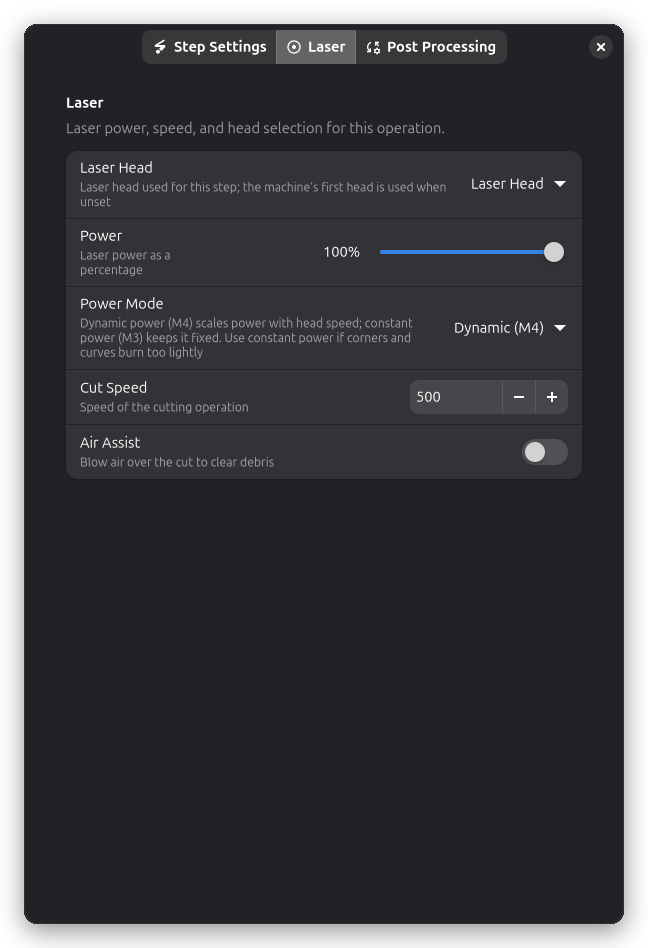
Power, speed, and laser head selection live on the Laser page of the step settings dialog.
Power & Speed
Power (%):
- Laser intensity for cutting the frame
- Match your material's cutting requirements
Speed (mm/min):
- How fast the laser moves
- Slower for thicker materials
Power Mode
The Power Mode setting controls how laser power is emitted during moves:
- Dynamic (M4) scales power with head speed (default)
- Constant (M3) keeps power fixed regardless of speed
Dynamic power ramps power down when the head slows into a corner, which can leave corners under-burned on some machines. Switch to Constant (M3) if the frame's corners burn too lightly.
To cut the frame more than once, add a Multi-Pass post-processor.
Kerf Compensation
Frame outline supports kerf compensation:
- Automatically adjusts for laser beam width
- Ensures accurate final dimensions
- Uses the kerf value from your laser head settings
Post-Processing
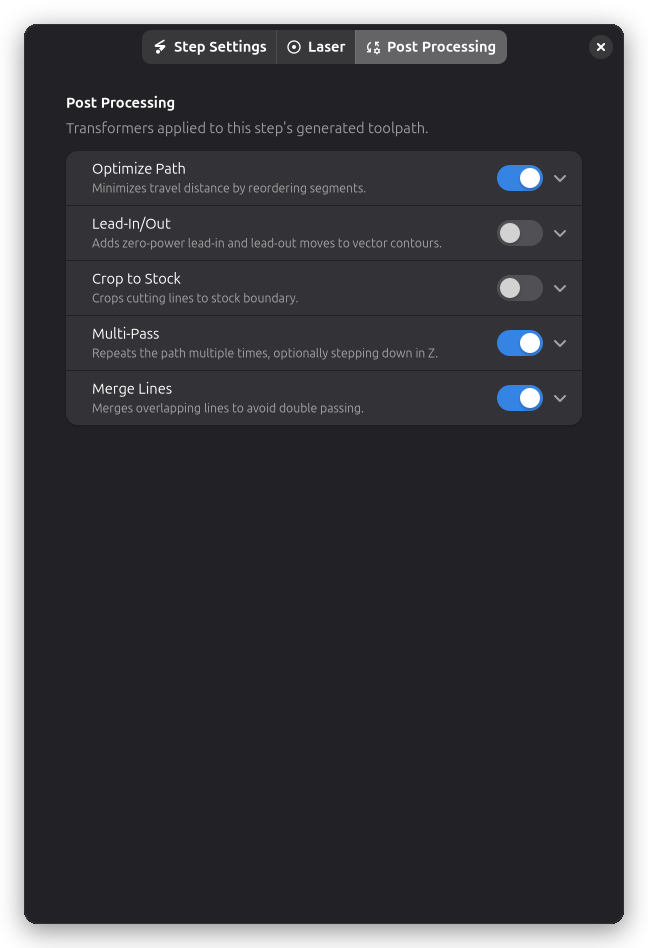
Frame Outline operations support several post-processing options:
- Holding Tabs - Keep the framed piece attached to stock
- Crop to Stock - Limit cuts to material boundary
- Path Optimization - Reduce travel distance
- Multi-Pass - Repeat cuts for thick materials
- Lead-In/Out - Add zero-power approach and exit moves for cleaner cut ends
Use Cases
Decorative Border
Scenario: Add a clean rectangular border around a plaque or sign
Process:
- Design your content (text, logos, etc.)
- Add Frame Outline with 3-5mm offset
- Cut at decorative scoring settings (low power)
Result: Professional-looking bordered piece
Cut Free from Sheet
Scenario: Remove your finished work from the material sheet
Process:
- Complete all other operations (engrave, contour cuts)
- Add Frame Outline as the last operation
- Set offset to include a small margin
Benefits:
- Clean separation from sheet
- Consistent edge quality
- Easy to execute as final step
Batch Processing Boundary
Scenario: Create a cutting boundary for multiple nested parts
Process:
- Arrange all parts on the canvas
- Add individual contour operations for parts
- Add Frame Outline around everything
- Frame cuts last (in separate layer)
Order: Engrave → Part contours → Frame outline
Tips & Best Practices
Layer Order
Best practice:
- Place Frame Outline in its own layer
- Execute frame as the last operation
- This ensures all other work completes first
Why last?
- Material stays secured during other operations
- Prevents pieces from shifting
- Cleaner final result
Offset Selection
Choosing offset:
- 0-2mm: Tight fit, minimal material waste
- 3-5mm: Standard margin, looks professional
- 10mm+: Extra material for handling/mounting
Consider:
- Final use of the piece
- Whether edges will be visible
- Material cost and availability
Quality Settings
For clean frame cuts:
- Use air assist
- Ensure proper focus
- Multiple faster passes often better than one slow pass
- Keep material flat and secured
Combining with Other Operations
Frame + Engrave + Contour
Typical workflow for a finished piece:
- Layer 1: Engrave details (text, images)
- Layer 2: Contour cut individual parts
- Layer 3: Frame outline (cut free)
Execution order ensures:
- Engraving happens while material is flat and secured
- Part details are cut before final separation
- Frame cuts everything free at the end
Frame vs Shrink Wrap
| Feature | Frame Outline | Shrink Wrap |
|---|---|---|
| Shape | Always rectangular | Follows object contours |
| Speed | Very fast (4 lines) | Depends on complexity |
| Use case | Simple borders, cutting free | Efficient material use |
| Flexibility | Fixed rectangle | Adapts to design |
Choose Frame Outline when:
- You want a rectangular border
- Simplicity is preferred
- Cutting free from sheet
Choose Shrink Wrap when:
- You want to minimize material waste
- Design has irregular shape
- Efficiency is important
Troubleshooting
Frame is too tight/loose
- Adjust: Offset distance setting
- Check: Path offset (inside/outside/centerline)
- Verify: Kerf compensation is correct
Frame doesn't appear
- Check: Objects are on the canvas
- Verify: Operation is enabled
- Look: Frame may be outside visible area (zoom out)
Frame cuts into design
- Increase: Offset distance
- Check: Objects are properly positioned
- Verify: Bounding box calculation includes all objects
Inconsistent cut depth
- Check: Material is flat
- Verify: Focus distance is correct
- Try: Multiple passes at lower power
Technical Details
Bounding Box Calculation
Frame outline uses the combined bounding box of:
- All workpieces on the canvas
- Their final transformed positions
- Including any applied rotations/scaling
Path Generation
- Calculate combined bounding box
- Apply offset distance
- Apply path offset (inside/outside/centerline)
- Apply kerf compensation
- Generate rectangular G-code path
G-code Example
G0 X5 Y5           ; Move to frame start (with offset)
M3 S200            ; Laser on at 80% power
G1 X95 Y5 F500     ; Cut bottom edge
G1 X95 Y95         ; Cut right edge
G1 X5 Y95          ; Cut top edge
G1 X5 Y5           ; Cut left edge (complete)
M5                 ; Laser off
Related Topics
- Contour Cutting - Cutting individual object outlines
- Shrink Wrap - Efficient irregular boundaries
- Holding Tabs - Keeping parts secure during cutting
- Multi-Layer Workflow - Organizing operations effectively
- Kerf Compensation - Improving dimensional accuracy