


General Settings
The General page in Machine Settings contains the machine name, driver selection and connection settings, and speed parameters.
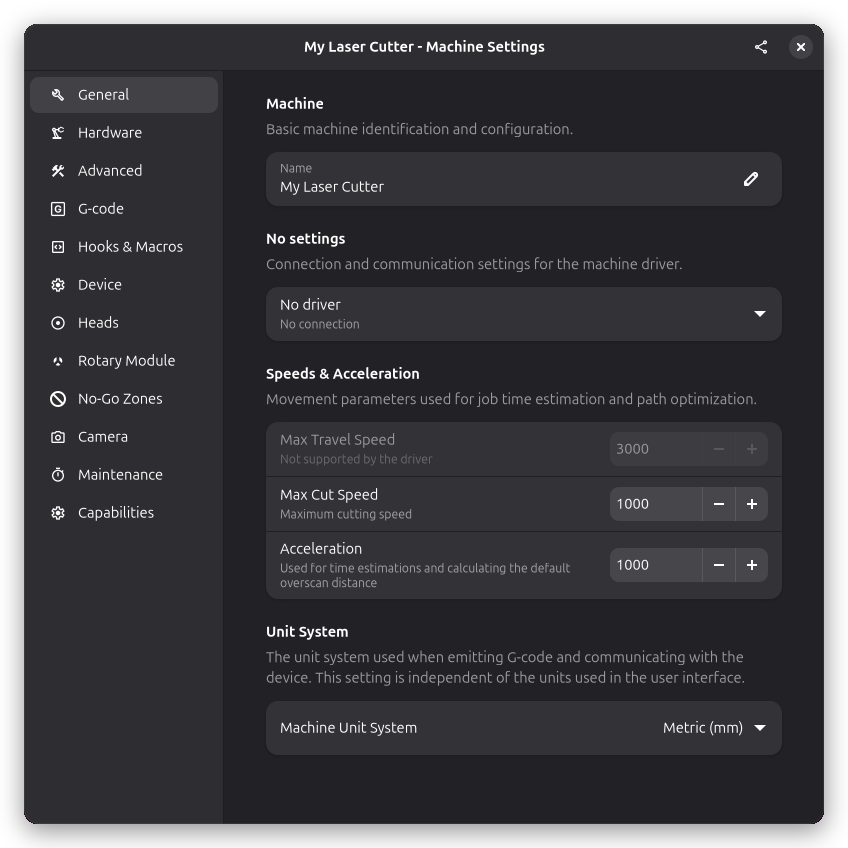
Machine Name
Give your machine a descriptive name. This helps identify the machine in the machine selector dropdown when you have multiple machines configured.
Driver
Select the driver that matches your machine's controller. The driver handles communication between Rayforge and the hardware.
GRBL devices have three serial driver options:
- GRBL (Serial) — Buffer-counting driver with deadlock detection and stall recovery. Recommended for most GRBL devices
- GRBL (Serial Simple) — Ping-pong protocol driver. Sends one line, waits for "ok", sends the next. No buffer management, no deadlock detection. Useful when the standard driver causes false alarms
- GRBL (Rust) — Experimental driver whose complete GRBL serial protocol stack (flow control, job streaming, stall detection, deadlock recovery, settings, and probing) runs in Rust. Can be selected as a drop-in alternative to GRBL (Serial)
Ruida-based controllers are supported by the Ruida RPA driver, which connects over USB or UDP directly, or via TUI RPC through the Ruida Protocol Analyzer. Its USB field offers a dropdown of connected devices with VID:PID matching, and it honors each step's Power Mode setting — Dynamic enables the controller's power scaling, Constant disables it. Power behavior is tuned with the driver's Power Scaling, VECTOR power floor and IMAGE power bias options: power scaling raises the emitted minimum power as the layer's cut speed decreases, the vector power floor compensates over-burn at the ends of lines, and the image bias compensates for CO2 tubes that do not fire at very low power.
Serial Port Binding
Instead of a device path (e.g. /dev/ttyUSB0 or COM3), the serial port field also accepts a USB
VID:PID identifier such as 0403:6001. When a machine is bound by VID:PID, auto-reconnect follows
it to its new port after the OS re-enumerates USB devices — for example after a reboot or when the
machine is unplugged and reconnected. You can find a device's VID:PID in the output of lsusb
(Linux) or Device Manager → Hardware IDs (Windows).
After selecting a driver, connection-specific settings appear below the selector (e.g. serial port, baud rate). These vary depending on the chosen driver.
An error banner at the top of the page warns you if the driver is not configured or encounters a problem.
Speeds & Acceleration
These settings control the maximum speeds and acceleration. They are used for job time estimation and path optimization.
Max Travel Speed
The maximum speed for rapid (non-cutting) movements when the laser is off and the head is moving to a new position.
- Typical range: 2000-5000 mm/min
- Note: Actual speed is also limited by your firmware settings. This field is disabled if the selected G-code dialect does not support specifying a travel speed.
Max Cut Speed
The maximum speed allowed during cutting or engraving operations.
- Typical range: 500-2000 mm/min
- Note: Individual operations may use lower speeds
Acceleration
The rate at which the machine accelerates and decelerates, used for time estimations and calculating the default overscan distance.
- Typical range: 500-2000 mm/s²
- Note: Must match or be lower than firmware acceleration settings
Start with conservative speed values and increase gradually. Observe your machine for belt skipping, motor stalling, or loss of positioning accuracy.
Exporting a Machine Profile
Click the share icon in the header bar of the settings dialog to export the current machine configuration. Choose a folder to save to. A zip file is created containing the machine settings and its G-code dialect, which can be shared with other users or imported on another system.
See Also
- First Time Setup - Create a machine step by step with the configuration wizard
- Hardware Settings - Work area dimensions and axis configuration
- Device Settings - Read and write firmware settings on the controller