


Path Clean-Up
Logos and drawings from other programs are not always clean. An outline may stop a fraction of a millimetre before its start point, a shape may be made of several open pieces, or the same path may be in the file twice. Rayforge cuts such paths exactly as they are, so a shape that only looks closed is treated as open, and a doubled path is cut twice.
The path clean-up tools fix this on the selected workpieces. You find them in the Object menu and under Clean Up Paths in the canvas context menu. Each tool is a single undo step.
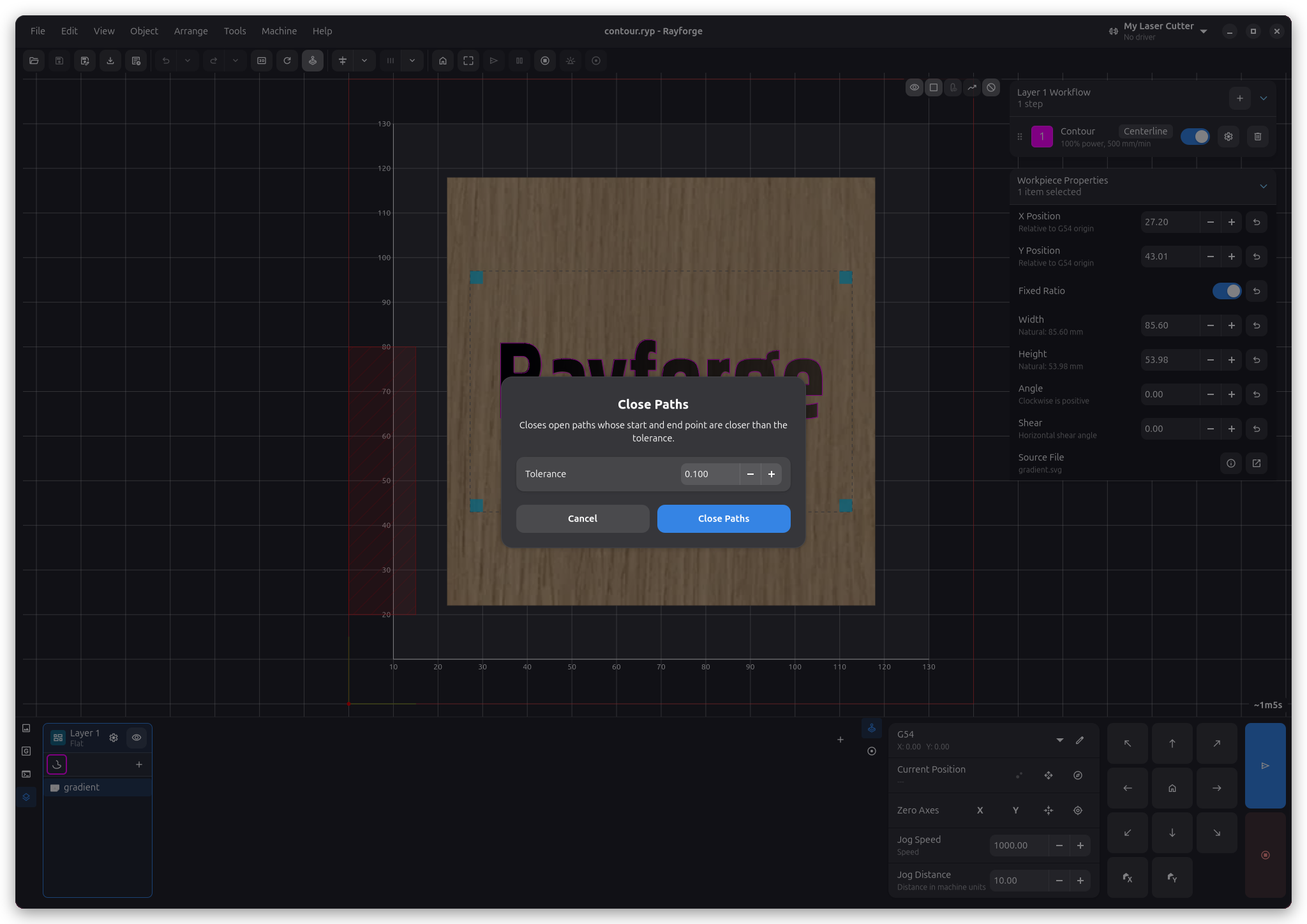
Close Paths
Close Paths… closes every open path whose start and end point are closer than the tolerance you enter. The gap is bridged with a straight line between the two existing points, so the shape does not move or change size.
Join Open Paths
Join Open Paths… connects open paths whose end points are closer than the tolerance into longer paths. Pieces are reversed where needed, so the order and direction in which they were drawn do not matter. When the ends of a joined path then meet, the path is closed as well.
Both tools remember the last tolerance you used during the session. A tolerance between 0.05 mm and 0.2 mm works for most imported files.
Delete Duplicates
Delete Duplicates removes paths that lie exactly on top of another path in the same workpiece, regardless of their direction or start point. When you select several workpieces, a workpiece that is an exact copy of another selected workpiece at the same position is removed too.
Overlapping paths that only share part of their length are left alone. The Merge Lines post-processor takes care of those when the job is generated.
Break Apart
Break Apart turns every path of a workpiece into a workpiece of its own, holes and open paths included. This differs from Split, which keeps an island together with its holes.
Path clean-up only works on imported and traced workpieces. Workpieces that come from a sketch are edited in the Sketcher instead.
Related Pages
- Merge Lines - Cutting overlapping segments only once
- Canvas Tools - Selecting and deleting individual segments
- Importing Files - Bringing designs into Rayforge