


Polygon and Star
The polygon tool (G+X) draws a regular polygon, such as a hexagon for a coaster, or a star.
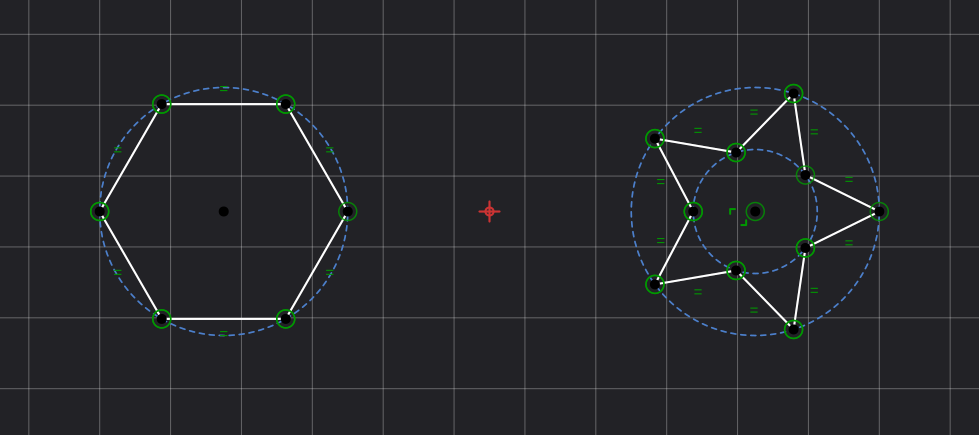
Drawing a Polygon
Click where the center should be, move the pointer and click again, or press at the center, drag and release. The pointer sets the first corner, so it sets both the size and the rotation. A new polygon has 6 corners.
- Hold
Ctrlto draw a star instead: it adds an inner corner between every two outer corners, at half the outer radius.
While the preview is active, you can type exact values: the status bar shows the R, N and Star
fields. R is the radius from the center to the corners, N the number of corners (3 to 100), and
Star the inner radius as a fraction of the outer one (between 0 and 1). Typing a Star value
turns the polygon into a star. Type a value, press Tab to move to the next field, and Enter to
create the shape; Esc cancels the preview. The tool remembers the corner count for the next
polygon.
What You Get
A polygon is not a special object: it consists of ordinary points and lines, so fillet, chamfer, offset and boolean operations work on it like on any other shape.
Constraints keep it regular. All edges have equal length, and the corners lie on a construction circle around the center point; a star has a second construction circle for its inner corners and keeps the ratio between the two radii. When you typed a radius, a radius constraint fixes it. You can then drag the center to move the polygon, or drag a corner to resize and rotate it, and it stays regular. To change the size later, edit the radius constraint or add one to the construction circle.