


Parameters and Expressions
A sketch becomes truly parametric when its dimensions are driven by named values instead of hard-coded numbers. This page walks through the full workflow: creating parameters, driving geometry with them through expressions, and assigning per-instance values from the main window. It also covers template expressions in text boxes.
Adding and editing parameters
Every sketch carries its own list of parameters, shown in the Sketch Parameters panel on the left of the sketch editor. Click Add Parameter to create a new one, choosing between an integer, a floating point number, a slider, or a single line of text.
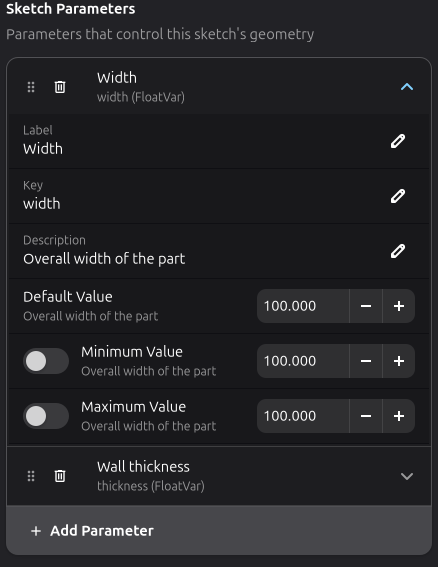
Each parameter is an expandable row. Click the row to reveal its definition fields:
- Label — the human-readable name shown in lists.
- Key — the identifier that expressions refer to (auto-derived from the label unless you type it
yourself). Keep it a valid Python name, e.g.
widthorwall_thickness. - Description — an optional note shown under the row.
- Default Value — the value the parameter starts at.
- Minimum / Maximum Value — optional bounds (enable the toggle for each). A slider parameter always has a finite range.
A typical setup for a box with a variable wall thickness is two parameters, width and thickness.
Nothing constrains geometry yet; the parameters are only names for numbers until an expression uses
them.
Using parameters in expressions
Double-click a dimensional constraint (see Constraints) and enter an expression instead of a plain number:
width / 2
The constraint's value becomes the result of that expression, re-evaluated every time the sketch
solves. In the example below the left edge is constrained to width / 2 — its marker and label are
drawn in orange to flag that it is expression-driven — while the top edge keeps a plain numeric
dimension:

Change the width parameter and the constrained geometry follows — one edit now updates every
dimension that references it.
Expressions can combine parameters with arithmetic and the standard Python math functions:
width - 2 * thickness
sqrt(area) / 2
2 * pi * radius
Functions like sqrt, sin, cos, and tan, and constants like pi, come from Python's math
module — that module, plus the parameters, is exactly what a constraint expression can reference.
String parameters can be referenced too, which is mostly useful in text boxes.
Assigning values in the main window
Parameters defined in a sketch act as defaults for its boundary. When a sketch is placed in the
document, each workpiece carries its own copy of every parameter value, and the Sketch
Parameters group in the right-hand properties panel lets you override them per instance — the same
sketch can be used at several sizes across a sheet, each with its own width and thickness.
Select the sketch workpiece in the main window and the group appears in the property panel, one row per parameter, each with the value that instance uses. Type or spin a new value; the part regenerates immediately.

Editing the parameter definitions (adding a parameter, changing a default, or renaming a key) happens inside the sketch editor, as described above. The main window panel only adjusts the values for the selected instance — it always mirrors the sketch's set of parameters, and a new instance uses the sketch's defaults until you override them.
Template expressions in text boxes
Text boxes resolve expressions enclosed in curly braces at solve time, so labels and engraved text display live values:
W = {width}, H = {height}
Any parameter can be substituted by name, and the result can be formatted with a Python format specifier after a colon:
{width}— the current value of thewidthparameter{name}— the value of a string-type parameter{width:.1f}— one decimal place{timestamp():.0f}— no decimals on a function result
Math works here too, either as an expression such as {width * 2} or through a function like
{sqrt(area):.2f}. Compared to constraint expressions, text templates have a richer toolbox: along
with the math module they expose the built-in functions below, and custom functions can be
registered for them (see below).
Built-in template functions
| Function | Return type | Description |
|---|---|---|
{today()} | date | Current UTC date (e.g., 2026-08-26) |
{date()} | date | Alias for today() |
{now()} | datetime | Current UTC date and time |
{time()} | time | Current UTC time (e.g., 15:30:00.123456+00:00) |
{timestamp()} | float | Unix timestamp (seconds since epoch) |
{uuid4()} | str | 8-character hex string (e.g., a1b2c3d4) |
{uuid8()} | str | Alias for uuid4() |
{uuid()} | str | Full UUID v4 string (36 chars) |
Typical uses include unique serial numbers per solve (Part # {uuid4()}), live dimension labels
(W={width:.1f} H={height:.1f}), date stamps (Date: {today()}), production counters
({name} - {count:.0f}pcs), or Unix timestamps for production logging ({timestamp():.0f}).
Custom template functions
You can register your own functions to use inside text box templates. This is useful for pulling serial numbers from a database, reading external data, or generating custom labels.
Writing the registration script
Create a Python file (e.g. ~/.config/rayforge/my_functions.py):
"""Register custom template functions for text box expressions."""
import sqlite3

from sketcher.core.template_functions import register_template_function

DB_PATH = "/home/you/production.db"


def next_serial() -> str:
    """Fetch and reserve the next serial number from the database."""
    conn = sqlite3.connect(DB_PATH)
    try:
        cur = conn.execute(
            "UPDATE counters SET value = value + 1 "
            "WHERE name = 'serial' RETURNING value"
        )
        row = cur.fetchone()
        conn.commit()
        return f"SN-{row[0]:06d}"
    finally:
        conn.close()

register_template_function("next_serial", next_serial)
Call register_template_function(name, callable) for each function. The function can do anything
Python can — open files, connect to databases, call APIs — and it is called on every render, so
it should be fast (use caching if the underlying data does not change between renders). Functions
are thread-safe if your callable is.
Running Rayforge with the script
Use the --script flag to load your functions before the window opens:
rayforge --script ~/.config/rayforge/my_functions.py mydoc.ryp
This runs your script early during startup — before addons are loaded and before the main window is created — so the function is available when the sketch first solves.
Using the function in a text box
In the sketcher, create a text box with:
{next_serial()}
Format specs work too:
{next_serial():>20}
Registering functions programmatically
If you're writing an addon or a reusable library, you can call register_template_function from any
Python code that runs before the sketch is solved:
from sketcher.core.template_functions import register_template_function

register_template_function("part_number", lambda: f"P-{hash('x') % 10000:04d}")
Built-in functions cannot be removed
The built-in functions (today, now, uuid, etc.) cannot be unregistered. If you need to change
their behavior, register a function with a different name.