


Offset Contour
The offset tool (O+F) grows or shrinks a selected contour by a given distance, or expands an open
path into a slot. Select the entities that form a contour (or use double-click to select connected
geometry), then press O+F, or use the Offset entry in the pie menu.
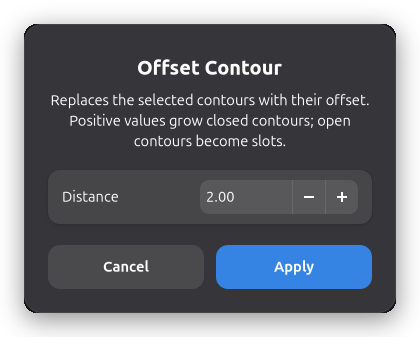
The dialog asks for the offset distance and shows a live preview of the result on the canvas while you type:
- Closed contours grow with a positive distance and shrink with a negative one. Offsetting past the point where the contour would collapse is refused.
- Open paths become a closed slot outline of the given width, with rounded end caps.
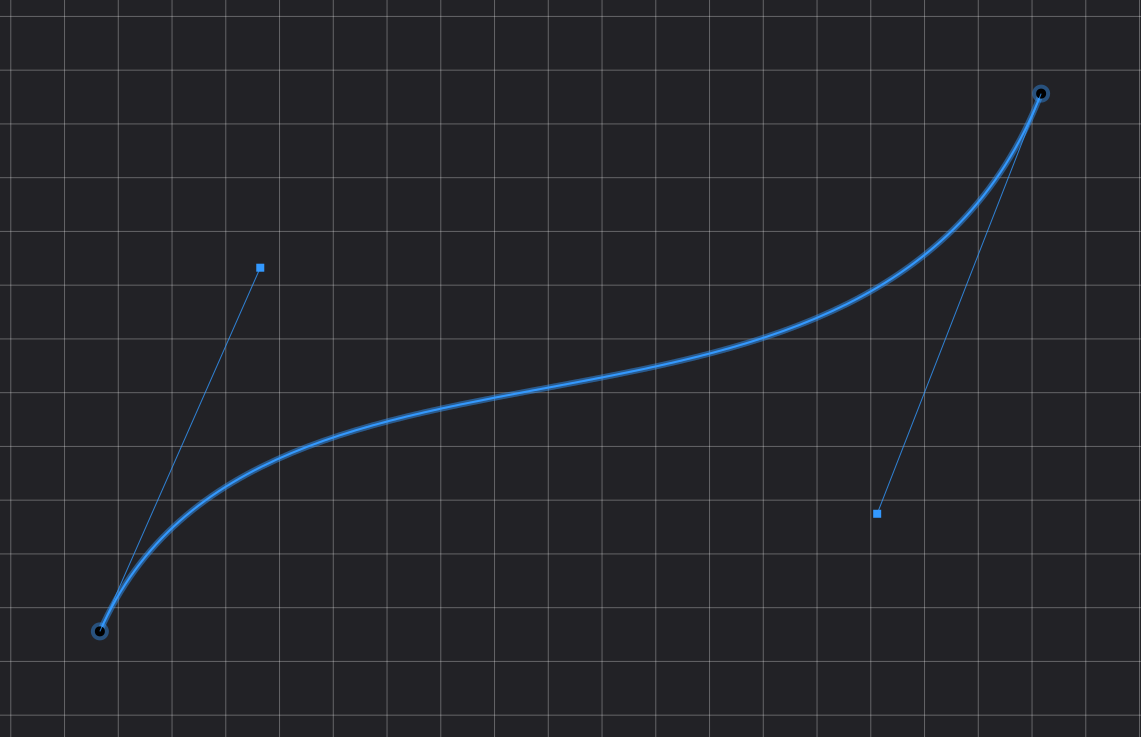
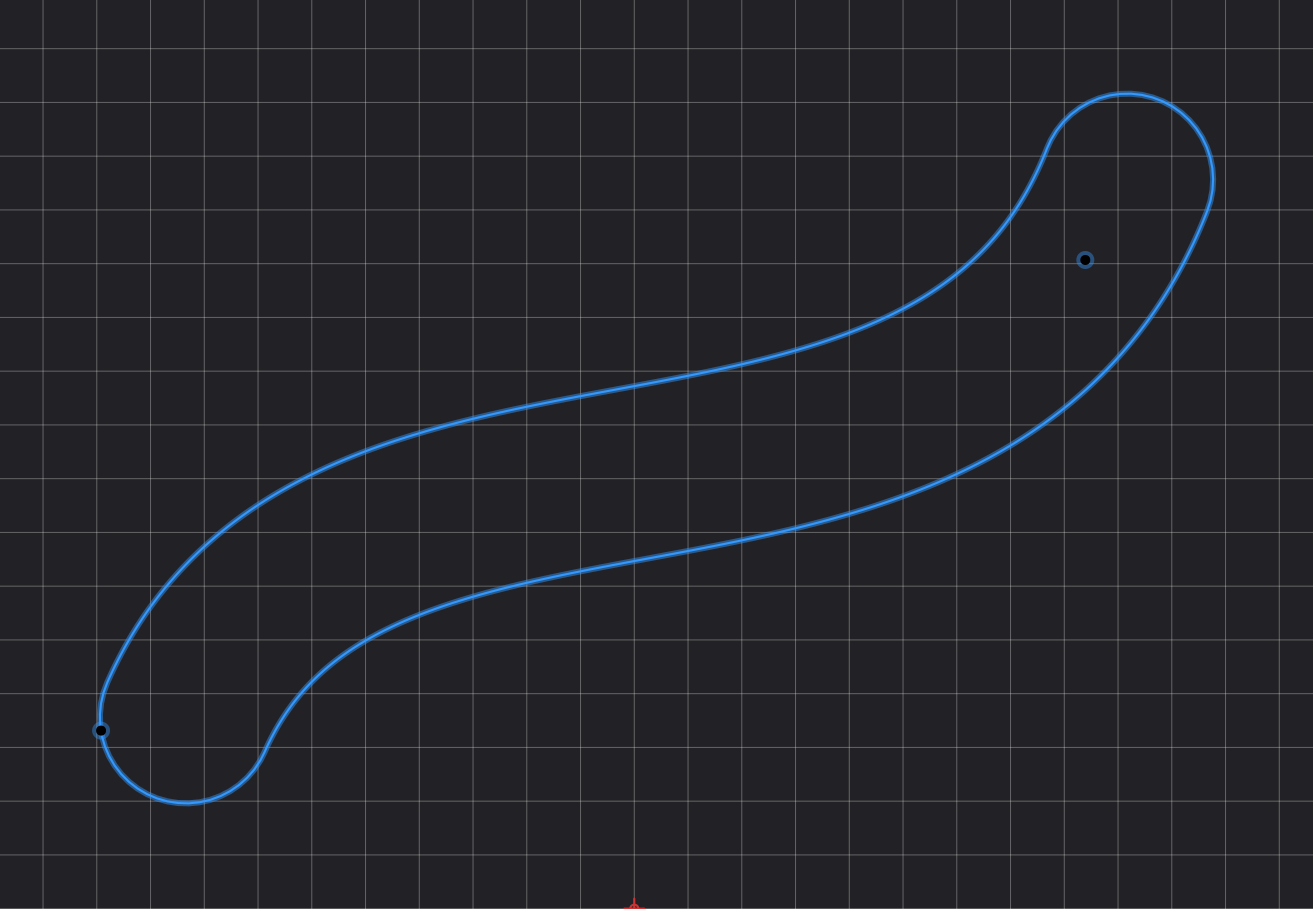
Offsetting replaces the selected contour with the result:
- Lone circles, arcs, and ellipses keep their entity type and are updated in place, so they remain editable and constrainable as before.
- Chains of connected segments (including beziers) are replaced by a polygon entity. The polygon is edited as a whole: drag its center point to move it and the handle point to rotate or uniformly scale it.
If the selection contains several disconnected contours, each one is offset independently in a single step.