


Remote Devices
Run your machine from a small computer next to the hardware (for example a Raspberry Pi in the workshop) while Rayforge runs on your laptop or desktop. Jobs run on the device host and keep going even if Rayforge disconnects; reconnecting resyncs progress exactly.
How it works
- The raydriver daemon hosts the machine connection next to the hardware.
- Rayforge connects to a device on the daemon — it does not need to know which protocol the device speaks. The daemon resolves that and tells Rayforge what the device can do.
- Remote machines use a single Remote machine (raydriver) driver. The protocol-specific drivers (GRBL, Smoothie, Marlin) are for hardware attached directly to your computer.
Set up the device host
- Install raydriver on the device host:
pip install raydriver. Network discovery is included. - Run
raydriver daemon add /dev/ttyUSB0(use your machine's serial port;raydriver scanlists them). This creates the config with a generated token and registers the device. Add--protocol/--baudratefor non-default firmware. - Run
raydriver daemon installto install and start the background service (systemd on Linux, launchd on macOS, a logon task on Windows), or runraydriver daemonin the foreground. - For LAN access, create a certificate with the
opensslone-liner printed byraydriver daemon --setupand settls_certandtls_keyin the config. A daemon on a non-loopback address refuses to start without both a token and TLS.
See the raydriver daemon guide for the full reference.
Get the token
The token is the shared secret Rayforge uses to connect. It is generated when you add the first device and printed once at that point. To print it again, run this on the device host:
raydriver daemon status
Copy the token: value — you will paste it into Rayforge below.
Connect Rayforge
The machine wizard discovers daemons on the network and lists their devices; pick one to add it. Alternatively, add a machine manually with the Remote machine (raydriver) driver and enter the daemon hostname, port and token, then choose the device from the list read from the daemon:
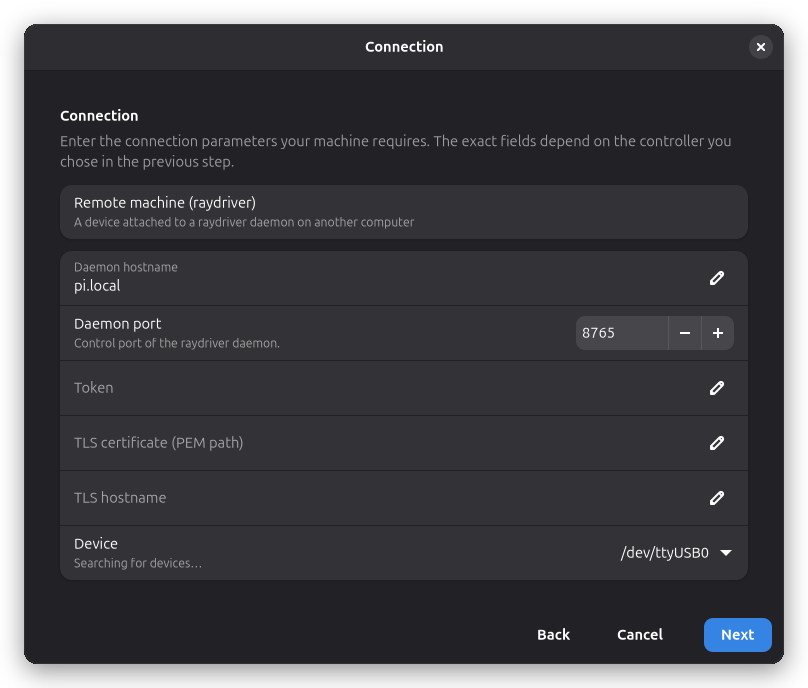
- Daemon hostname / port — the computer running the daemon (default port
8765). - Token — the value from
raydriver daemon statuson the device host. - Device — the machine on the daemon, read from its device list once the hostname and token are set.
- The TLS fields only appear for a daemon reached over the network; a daemon on the same computer
(
127.0.0.1) needs no certificate.
Probing works over the remote connection, so the wizard can identify hardware that is not attached to your computer.
Machine settings
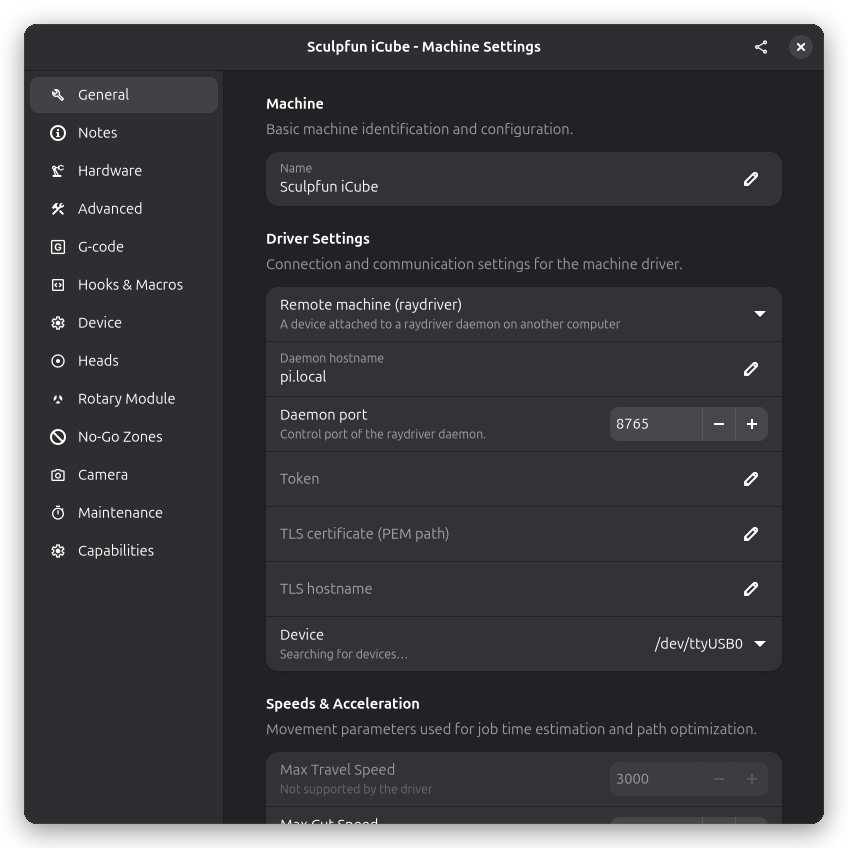
A remote machine's settings show the daemon endpoint and device instead of a local serial port:
Jobs and reconnects
- A submitted job runs to completion on the device host even if Rayforge closes or the network drops.
- Reconnect to see exact progress. One client at a time holds control; others can watch.
Cameras on the device host
Video does not travel over the control connection. Use Rayforge's network cameras with a stream reachable on the device host:
- IP camera: add its stream URL directly.
- USB camera on the device host: run a standard streamer such as
ustreamerand add its MJPEG URL as an HTTP stream camera.
The daemon advertises configured camera endpoints so the wizard can prefill the URL.
Security notes
- LAN (or tunnel) only — no cloud, no accounts.
- Token and TLS are mandatory for any non-loopback daemon.
- Keep camera streams LAN-only or firewalled; they are separate from the TLS control channel.