


Camera Integration
Rayforge supports camera integration for precise material alignment and positioning, using either a local USB camera or a network camera (HTTP snapshot, HTTP/MJPEG stream, or RTSP). The camera overlay feature allows you to see exactly where your laser will cut or engrave on the material, eliminating guesswork and reducing material waste.
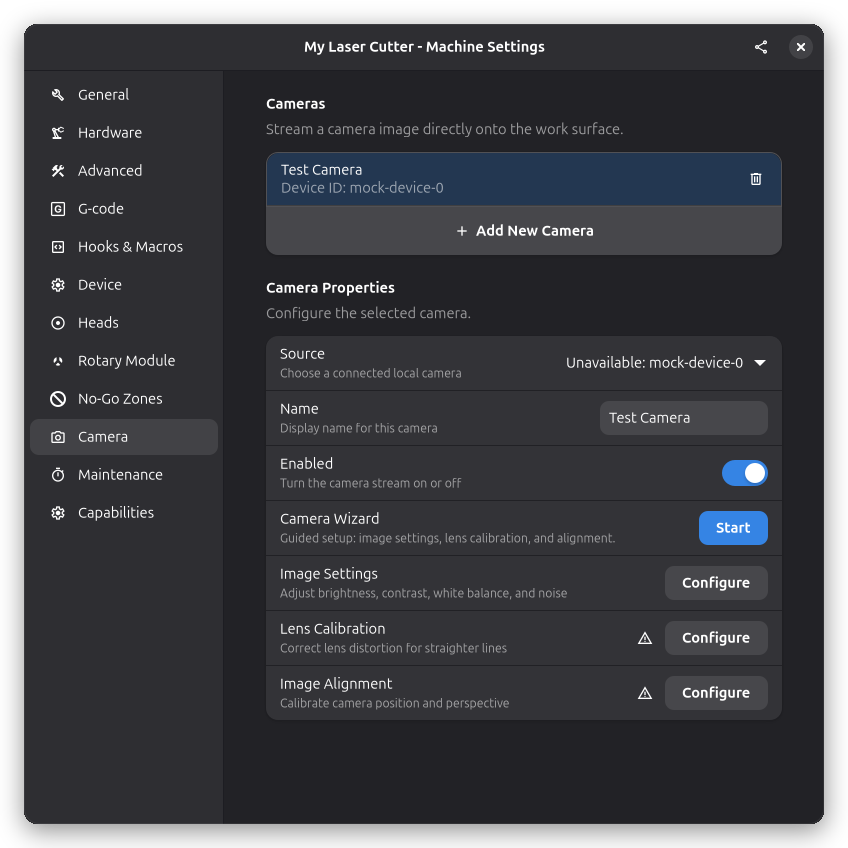
Setup Workflow
Setting up a camera can be done either through the guided Camera Wizard — a single flow covering image settings, lens calibration, and alignment — or by configuring each area manually from the camera properties panel. Either way, the setup covers four areas:
- Add a camera — Connect your camera and add it to the machine configuration
- Adjust image settings — Tune brightness, contrast, white balance, and noise reduction
- Calibrate the lens — Correct distortion with the camera wizard's automatic calibration or manual coefficients
- Align the camera — Map camera pixels to machine coordinates for accurate positioning
The camera properties panel shows status icons for calibration and alignment at a glance:
- ✓ Lens Calibration — Calibration has been performed
- ⚠ Image Alignment — Warning when alignment must be redone (e.g., after lens calibration)
- ✓ Image Alignment — Alignment is current and valid
Step 1: Add a Camera
Camera Source Types
Rayforge supports four kinds of camera sources:
| Source Type | Use For |
|---|---|
| Local camera | USB webcams, laptop built-in cameras, any V4L2/DirectShow device |
| HTTP snapshot | Endpoints that return one still image per request |
| HTTP stream | Continuous HTTP/HTTPS video, e.g. MJPEG-over-HTTP |
| RTSP | RTSP network cameras |
Local cameras are auto-detected and selected from a list. Network cameras (HTTP snapshot, HTTP stream, RTSP) are added by entering the camera's URL directly.
Hardware Requirements
Compatible local cameras:
- USB webcams (most common)
- Laptop built-in cameras (if running Rayforge on laptop near machine)
- Any camera supported by Video4Linux2 (V4L2) on Linux or DirectShow on Windows
Compatible network cameras:
- Any camera or device exposing an HTTP snapshot endpoint, HTTP/MJPEG stream, or RTSP stream reachable on your network
- See Adding a Network Camera below for an example
Recommended setup:
- Camera mounted above the work area with clear view of material
- Consistent lighting conditions
- Camera positioned to capture the laser work area
- Secure mounting to prevent camera movement
Adding a Local Camera
-
Connect your camera to your computer via USB
-
Open Camera Settings:
- Navigate to Machine → Machine Settings → Camera
-
Add a new camera:
- Click the + button to add a camera
- Choose Local camera as the source type
- Enter a descriptive name (e.g., "Top Camera", "Work Area Cam")
- Select the device from the dropdown
-
Enable the camera:
- Toggle the camera enable switch
- The live feed should appear on your canvas
Adding a Network Camera
-
Open Camera Settings:
- Navigate to Machine → Machine Settings → Camera
-
Add a new camera:
- Click the + button to add a camera
- Choose HTTP snapshot URL, HTTP stream URL, or RTSP stream as the source type
- Enter a descriptive name
- Enter the camera's URL, for example:
- HTTP snapshot:
http://192.168.1.50:8080/media/getCapturePhoto(also used by the Creality Falcon A1 Pro — see below) - HTTP stream (MJPEG):
http://192.168.1.50/mjpeg - RTSP:
rtsp://192.168.1.50/stream
- HTTP snapshot:
-
Enable the camera:
- Toggle the camera enable switch
- The live feed should appear on your canvas
The Falcon A1 Pro device profile includes a preconfigured, disabled HTTP snapshot camera. In
Machine → Machine Settings → Camera, select Falcon A1 Pro Camera and replace <laser-ip> in
the Source URL with the machine's reachable IP address. The camera exposes a still-image
endpoint at http://<laser-ip>:8080/media/getCapturePhoto. When connected via USB, the Falcon
shares a network interface over USB; find the address from your USB network adapter or the machine's
touchscreen network info. You can also use the IP address assigned to the Falcon on your Wi-Fi
network. Commit the valid URL with Enter or by leaving the field, then enable the camera.
If your camera's IP address changes later (for example after a reconnect or router reboot), you don't need to re-add the camera or redo calibration — see Updating a Network Camera's URL below.
Updating a Network Camera's URL
Network camera URLs can be edited in place without losing calibration or alignment:
- Select the camera in Camera Settings
- Edit the Source field with the new URL
- Press Enter or click elsewhere to apply
Editing the URL immediately turns the camera off. The enable switch stays unavailable while the URL
is invalid or has not yet been applied. Rayforge validates the URL against the camera's source type
(for example, an RTSP source must start with rtsp:// or rtsps://) and shows an error below the
field if it doesn't match. After applying a valid URL, enable the camera again manually.
Calibration, alignment, and all other settings are preserved — only the source endpoint changes.
Step 2: Camera Wizard
The Camera Wizard runs the full camera setup in a single guided flow, covering all three areas in order — image settings, lens calibration, and image alignment. It is started from:
- The Camera Wizard row in the camera properties panel — click Start
- Automatically from the configuration wizard when you enable a camera on its camera step and continue
Step 2.1: Adjust Image Settings
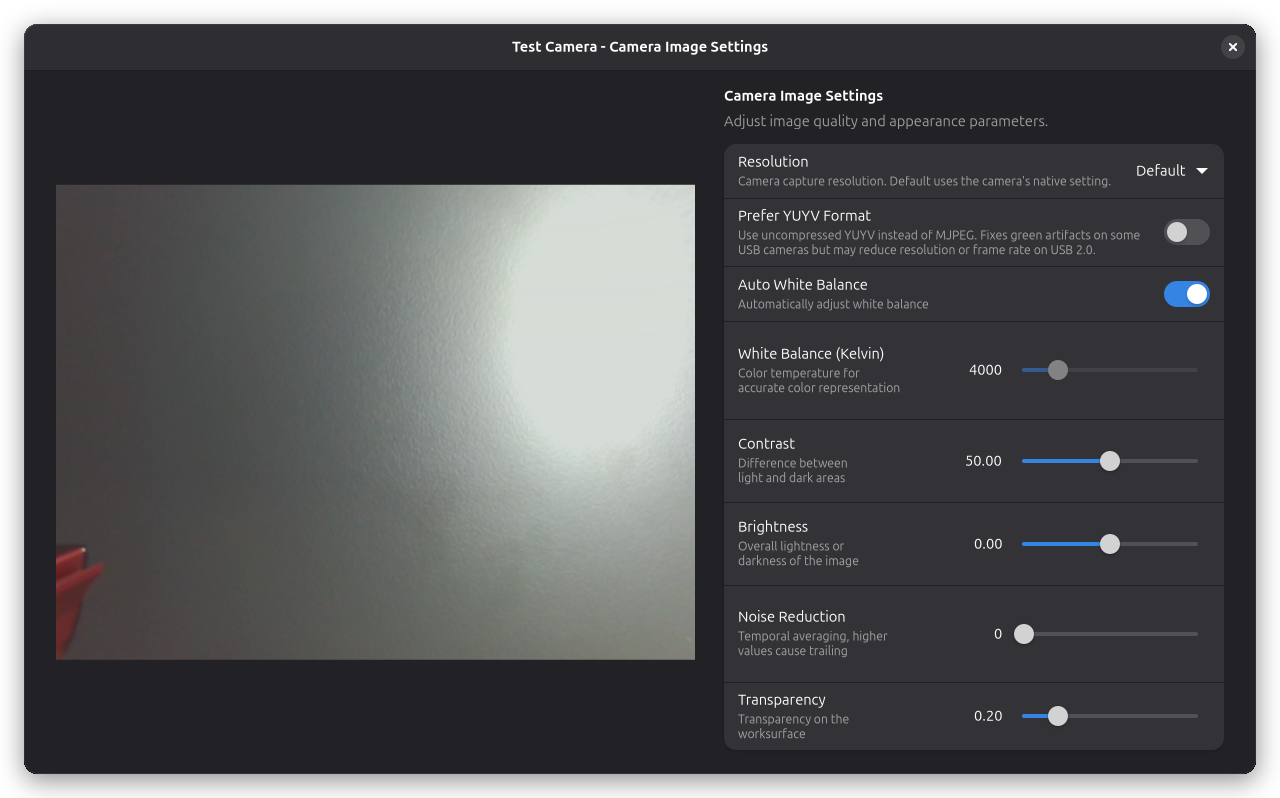
Image settings is the camera wizard's first stage — it opens there and lets you set the resolution, white balance, brightness, contrast, and noise reduction. If you didn't run the wizard, or want to tweak the values it set, click Configure next to Image Settings in the camera properties to open the image settings dialog. Adjust these parameters to get a clear camera view:
| Setting | Description |
|---|---|
| Brightness | Overall image brightness (-100 to +100) |
| Contrast | Edge definition and contrast (0 to 100) |
| Prefer YUYV | Use uncompressed YUYV instead of MJPEG. Slower but can fix some glitches |
| Transparency | Overlay opacity on canvas (0% opaque to 100% transparent) |
| White Balance | Color temperature correction (Auto or 2500–10000K) |
| Denoise | Temporal noise reduction (0.0 to 0.95) |
The YUYV option is useful if your camera produces green-tinted images with the default MJPEG format. Note that YUYV is uncompressed and may reduce the available resolution or frame rate on USB 2.0 connections.
Step 2.2: Lens Calibration
If your camera has a wide-angle lens or is mounted at an angle, the image may show visible curvature — straight lines appear bent, especially near the edges of the frame. This is called lens distortion, and it can throw off alignment even if your alignment points are carefully measured.
Lens calibration is the camera wizard's second stage. It lets you choose how to correct the distortion:
- Automatic — capture frames of a printed calibration pattern; the wizard computes the distortion model for you
- Manual — enter the radial (k1–k3) and tangential (p1–p2) coefficients by hand
- Skip — leave the distortion uncorrected; you can calibrate later
Automatic Calibration
For Automatic calibration, the wizard walks you through capturing several images of a printed calibration pattern from different positions on the bed, then computes a distortion model automatically.
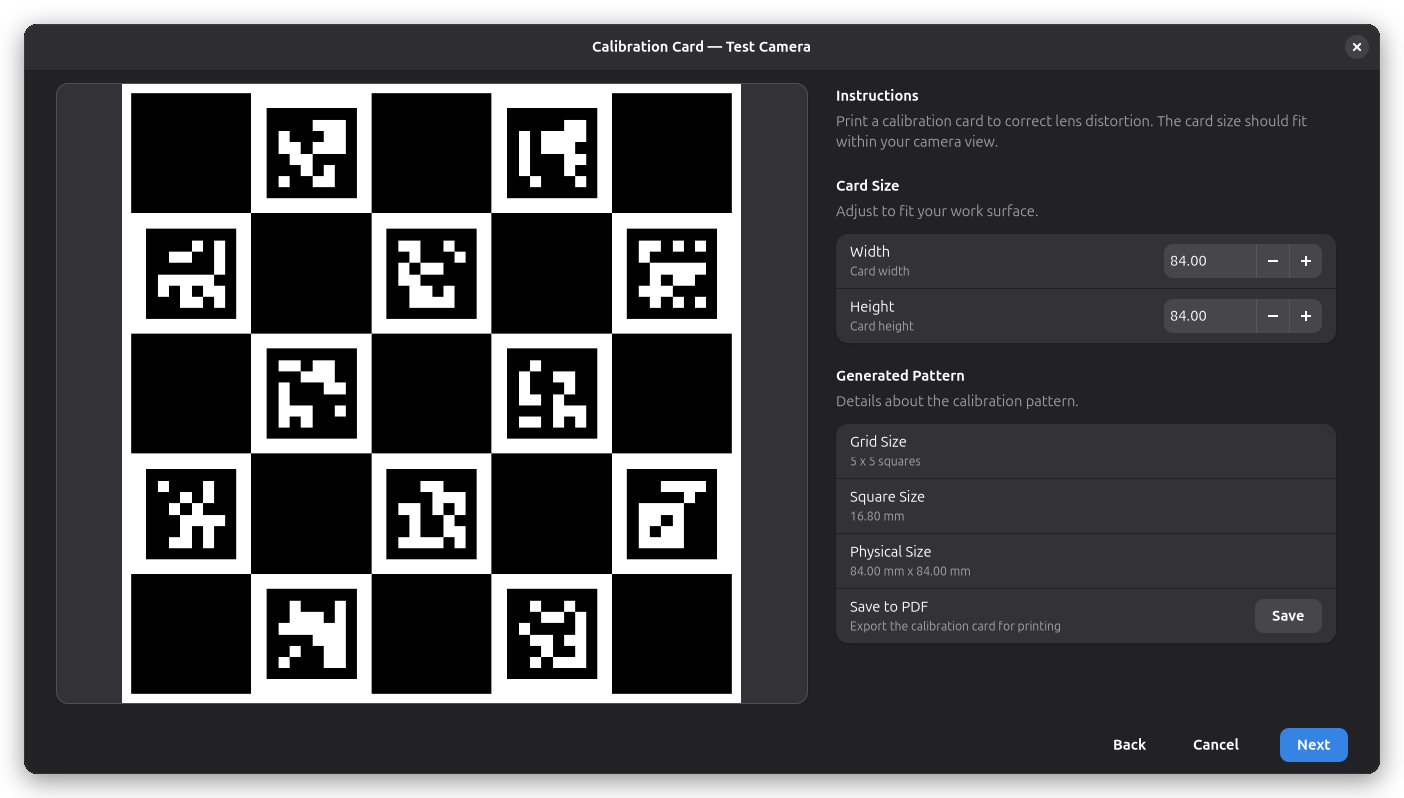
First choose a Pattern Type:
| Pattern | Notes |
|---|---|
| ChArUco Board | Chessboard carrying markers. Most accurate; needs a good printer. |
| Marker Grid | Standalone ArUco or AprilTag markers. Tolerates partial views and clutter. |
| Dot Grid | Black dots, in rows or in staggered rows. Cheapest to print, lowest accuracy. |
- Set the Width and Height of your printed sheet. The preview updates in real-time — the pattern should cover about 70% of the camera view.
- Click Save to PDF to export the pattern for printing, then print it and place it on the laser bed.
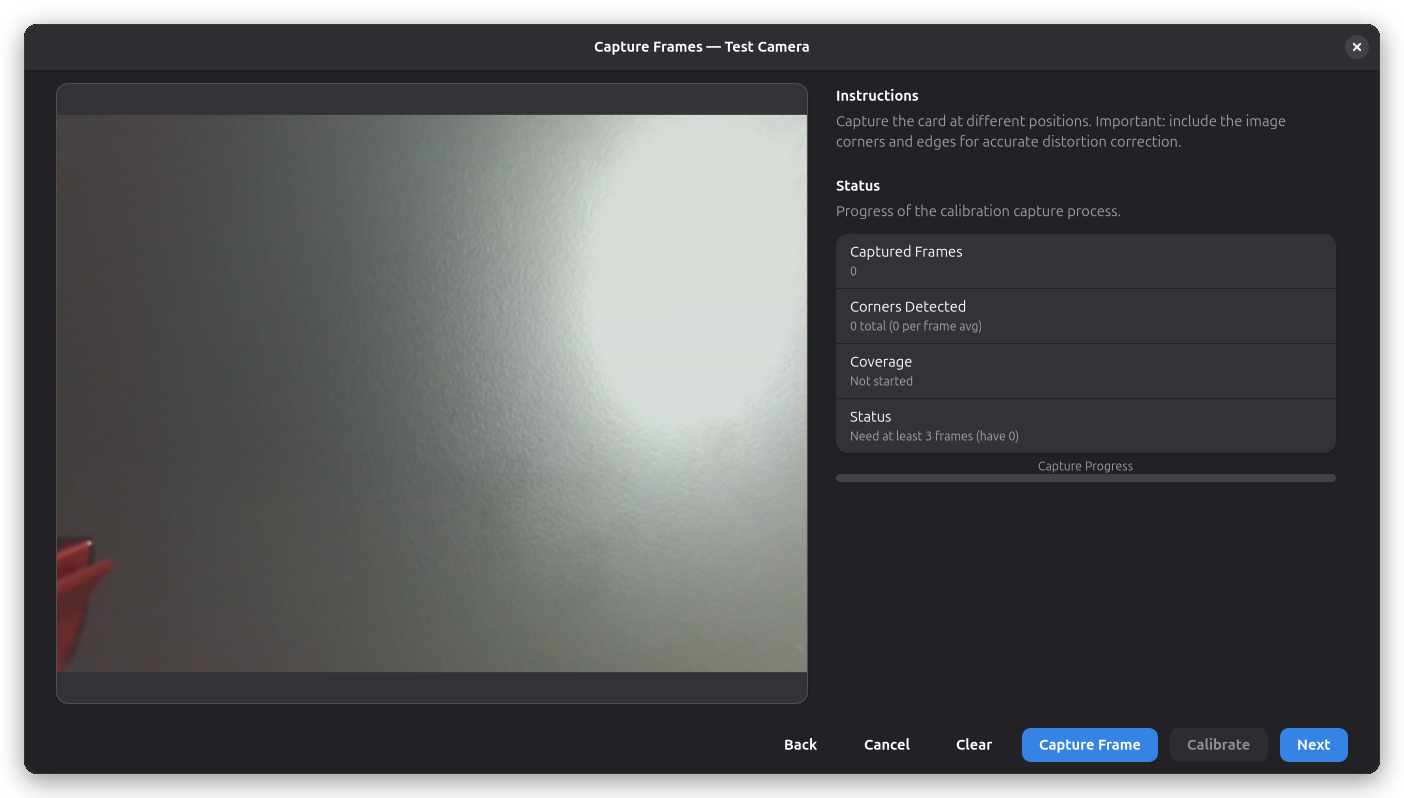
- Move the pattern to different positions and angles within the camera view and click Capture Frame for each position. Aim for at least 8 captures covering the entire frame, including corners and edges. The progress bar and status indicators show capture quality.
- When enough frames are captured, the wizard computes the distortion model and applies it — the camera overlay now shows a corrected, straight image.
Using a Pattern You Already Printed
The Pattern Geometry fields describe the sheet in physical units — grid counts, feature sizes, and the distances between them. Editing them switches the wizard to measuring an existing sheet rather than suggesting a new one, so you can calibrate against a pattern you printed earlier, or one that came with your machine.
Measure the sheet after printing, and enter the printed dimensions rather than the nominal ones: printers scale, and a few percent of scale error shows up directly in the calibration result. If you change a geometry field, the Card Size suggestion is ignored, because your measurements now decide the pattern.
For a Marker Grid, the Marker Dictionary must match the family the sheet was printed with (ArUco or AprilTag — Rayforge refines the corners accordingly). If the printed ids do not start at 0, for example one tile of a larger set, put the first id on the sheet in Marker ID Offset; markers outside the described range are ignored.
The numbering follows the ID Origin corner, which holds the offset id, and the ID Order: consecutive ids run along rows first, or along columns first. The default — top-left corner, rows first — matches OpenCV's own boards. To describe your sheet, find the marker with the lowest id and pick the corner it sits in; then check whether the next id sits beside it (rows) or below it (columns).
Dot sheets come in two arrangements, and the Row Spacing and Row Offset fields tell Rayforge which one you have:
- Rows in a rectangle — every row lines up. Leave Row Offset at 0.
- Rows staggered — every second row is shifted sideways, often by half a pitch, which gives a hexagonal arrangement. Put the distance between rows in Row Spacing and the sideways shift in Row Offset.
Rayforge suggests a staggered sheet by default, so if your sheet is a plain rectangle, set Row Offset back to 0.
A dot sheet has no cue for which way is up, so Rayforge reads its orientation from the view and from the pattern's own geometry. That holds as long as the sheet keeps roughly the same orientation between captures — so when using Dot Grid, do not rotate the sheet by a quarter turn between shots. Staggered rows help, because the shift breaks the symmetry a plain rectangle has. ChArUco and ArUco patterns carry their own orientation and have no such constraint; prefer them when you have the choice.
Manual Calibration
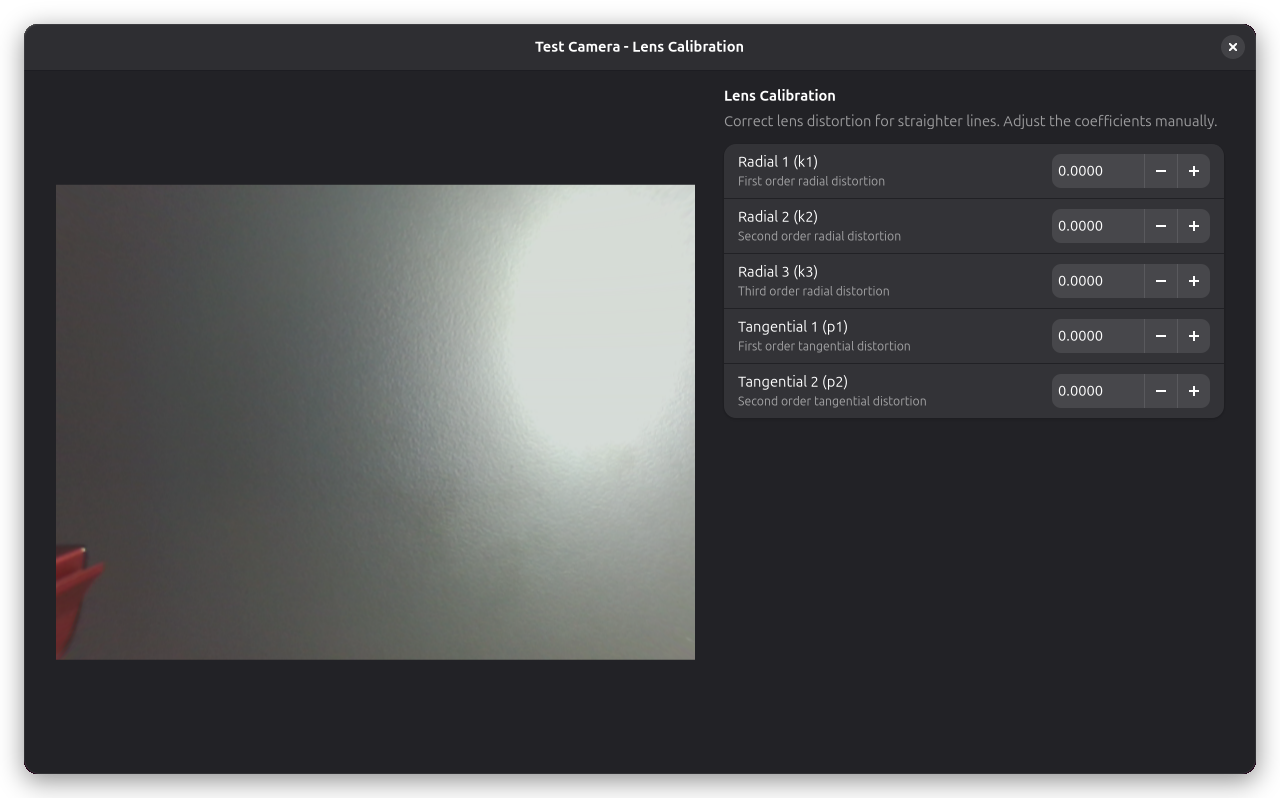
For manual coefficients or to fine-tune the result after an automatic calibration, open the lens calibration dialog by clicking Configure next to Lens Calibration in the camera properties. From here you can adjust the distortion coefficients manually — fine-tune the radial (k1–k3) and tangential (p1–p2) parameters.
Step 2.3: Image Alignment
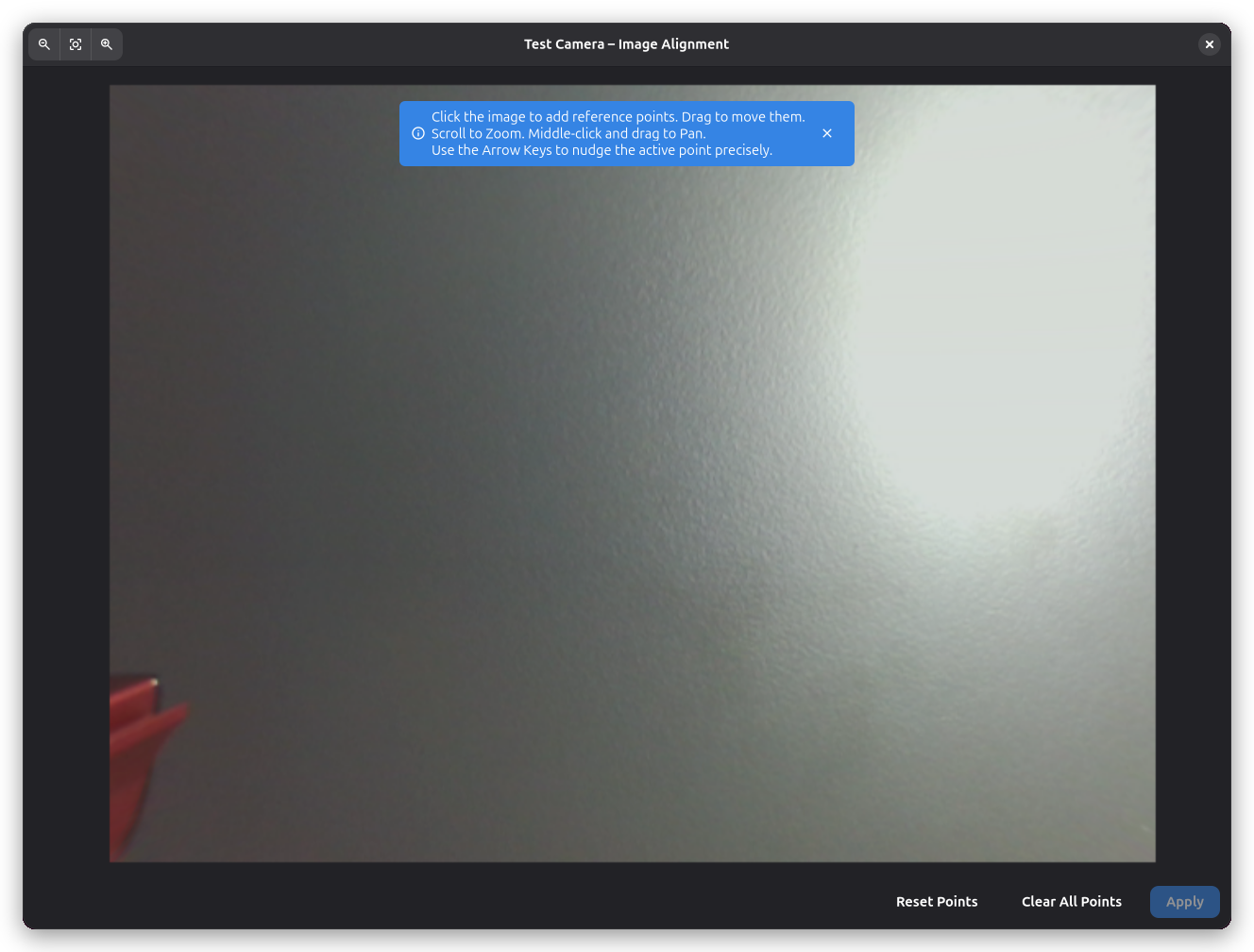
Image alignment is the camera wizard's final stage. Camera alignment calibrates the relationship between camera pixels and real-world coordinates, enabling accurate positioning. The wizard uses the same procedure described here, and applying the alignment finishes the wizard.
Why Alignment is Necessary
The camera sees the work area from above, but the image may be:
- Rotated relative to the machine axes
- Scaled differently in X and Y directions
- Distorted by lens perspective
Alignment creates a transformation matrix that maps camera pixels to machine coordinates.
Alignment Procedure
-
Open the Alignment Dialog:
- Click the Configure button next to Image Alignment in the camera properties
- The dialog shows the camera feed with the current alignment overlay
-
Place alignment markers:
- You need at least 3 reference points (4 recommended for better accuracy)
- Alignment points should be spread across the work area
- Use known positions like:
- Machine home position
- Ruler markings
- Pre-cut alignment holes
- Calibration grid
-
Mark image points:
- Click on the camera image to place a point at a known location
- The bubble widget appears showing point coordinates
- Repeat for each reference point
-
Enter world coordinates:
- For each image point, enter the real-world X/Y coordinates in mm
- These are the actual machine coordinates where each point is located
- Measure accurately with a ruler or use known machine positions
-
Apply alignment:
- Click Apply to calculate the transformation
- The camera overlay will now be properly aligned
-
Verify alignment:
- Move the laser head to a known position
- Check that the laser dot aligns with the expected position in the camera view
- Fine-tune by re-aligning if needed
Alignment Status
The camera properties panel shows the alignment status with an icon:
- Checkmark — Alignment is current and valid
- Warning — Alignment must be redone. This happens when lens calibration is updated, because the distortion correction changes the camera image and invalidates the existing alignment. Your alignment points are preserved — simply open the dialog and click Apply again.
Example Workflow
- Move laser to home position (0, 0) and mark in camera
- Move laser to (100, 0) and mark in camera
- Move laser to (100, 100) and mark in camera
- Move laser to (0, 100) and mark in camera
- Enter exact coordinates for each point
- Click Apply and verify
- Use points at the corners of your work area for maximum coverage
- Avoid clustering points in one area
- Measure world coordinates carefully — accuracy here determines overall alignment quality
- Re-align if you move the camera or change the focus distance
- Re-align after updating lens calibration
- Save your alignment — it persists across sessions
Using the Camera Overlay
Once aligned, the camera overlay helps position jobs accurately. Toggle it by clicking the camera icon in the main window toolbar.
Multiple Cameras
Rayforge supports multiple cameras for different views or machines:
- Add multiple cameras in preferences
- Each camera can have independent alignment
- Switch between cameras using the camera selector
- Use cases:
- Top view + side view for 3D objects
- Different cameras for different machines
- Wide angle + detail camera
Troubleshooting
Camera Not Detected
Problem: Camera doesn't appear in device list.
Solutions:
Linux: Check if the camera is recognized by the system:
# List video devices
ls -l /dev/video*

# Check camera with v4l2
v4l2-ctl --list-devices

# Test with another application
cheese  # or VLC, etc.
For Snap users:
# Grant camera access
sudo snap connect rayforge:camera
Windows:
- Check Device Manager for camera under "Cameras" or "Imaging devices"
- Ensure no other application is using the camera (close Zoom, Skype, etc.)
- Try a different USB port
- Update camera drivers
Camera Shows Black Screen
Problem: Camera detected but shows no image.
Possible causes:
- Camera in use by another application — Close other video apps
- Incorrect device selected — Try different device IDs
- Camera permissions — On Linux Snap, ensure camera interface connected
- Hardware issue — Test camera with another application
Solutions:
# Linux: Release camera device
sudo killall cheese  # or other camera apps

# Check which process is using the camera
sudo lsof /dev/video0
Network Camera Not Connecting
Problem: HTTP snapshot, HTTP stream, or RTSP source shows no image or repeatedly reconnects.
Possible causes:
- Wrong or outdated IP address — Network cameras can get a new IP after a reconnect or router reboot; update the Source URL in the camera properties (see Updating a Network Camera's URL)
- URL doesn't match the source type — an HTTP snapshot/stream URL must start with
http://orhttps://; an RTSP URL must start withrtsp://orrtsps:// - Camera and computer on different networks — ensure both can reach each other (same LAN/WiFi, no client isolation)
- Endpoint temporarily unavailable — for HTTP snapshot sources, Rayforge keeps showing the last
good frame and retries at a reduced rate; check the endpoint is reachable in a browser or with
curl
Alignment Not Accurate
Problem: Camera overlay doesn't match real laser position.
Diagnosis:
- Insufficient alignment points — Use at least 4 points
- Measurement errors — Double-check world coordinates
- Camera moved — Re-align if camera position changed
- Non-linear distortion — May need lens calibration
Improve accuracy:
- Use more alignment points (6–8 for very large areas)
- Spread points across entire work area
- Measure world coordinates very carefully
- Use machine movement commands to precisely position laser at known coordinates
- Re-align after any camera adjustments
Poor Image Quality
Problem: Camera image is blurry, dark, or washed out.
Solutions:
- Adjust brightness/contrast in camera settings
- Improve lighting — Add consistent work area lighting
- Clean camera lens — Dust and debris reduce clarity
- Check focus — Auto-focus may not work well; use manual if possible
- Reduce transparency temporarily to see camera image more clearly
- Try different white balance settings
- Adjust denoise setting if image appears grainy
Camera Lag or Stuttering
Problem: Live camera feed is choppy or delayed.
Solutions:
- Lower camera resolution in device settings (if accessible)
- Close other applications using CPU/GPU
- Update graphics drivers
Related Pages
- 3D Preview — Preview execution with camera overlay
- Framing Jobs — Verify job position
- General Settings — Machine configuration