


Color Rules
Color rules let you assign a step type to a specific color so that the correct operation is chosen automatically when you import an SVG, PDF, or other vector file. Instead of manually creating steps for every imported layer, Rayforge reads the color of each shape and applies the matching rule.
How It Works
When you import a vector file, Rayforge can group the incoming shapes by their color. Each distinct color becomes a layer. If a color rule exists for that color, the layer is given the rule's step type automatically. Colors without a rule receive the default behavior (Contour for outlines, plus Engrave if the shapes have fills).
After the step type is assigned, the normal recipe matching system runs on top — so color rules determine what operation runs, and recipes determine how it runs (power, speed, passes, etc.).
Creating Color Rules
1. Open the Color Rules Page
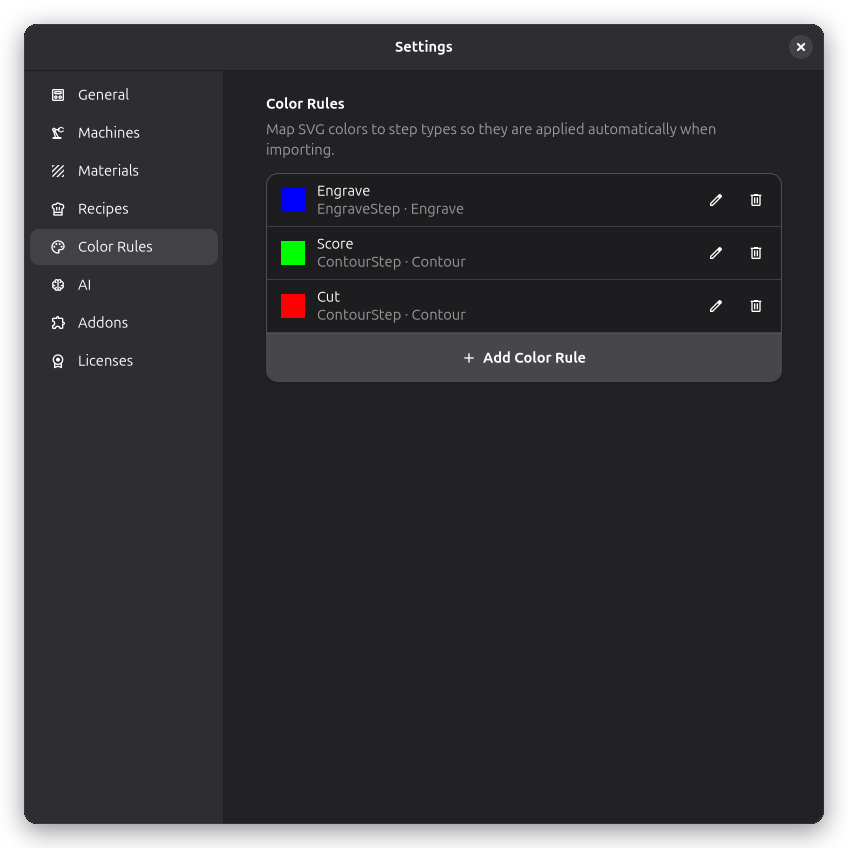
Menu: Edit → Settings, then select Color Rules in the sidebar.
2. Add a Rule
Click Add Color Rule to open the editor dialog:
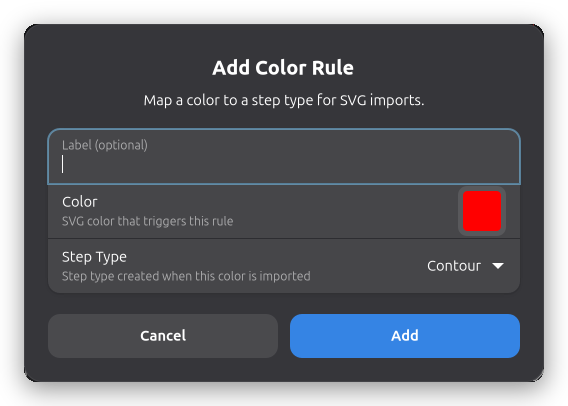
- Color — Pick the SVG color that should trigger this rule. Use the color picker to match the stroke or fill color from your design software.
- Label (optional) — A friendly name shown in the rules list (e.g. "Cut Red", "Engrave Blue"). If left blank, the hex value is used.
- Step Type — The operation to create when this color is imported. Any registered step type is available, including ones provided by addons (e.g. Shrink Wrap, Material Test Grid).
3. Save
Click Add to save the rule. It takes effect immediately on the next import. The rule appears in the list below with a color swatch, label, and step type.
Color rules match by exact hex value. When picking a color in your
design software (Inkscape, Illustrator, etc.), note the exact hex code and enter the same value in
Rayforge. For example, #e34c4c in your SVG must be #e34c4c in the rule — even a one-digit
difference will prevent the match.
Managing Rules
Each rule in the list shows a color swatch, the label, the step type, and edit/delete buttons.
- Edit — Change the color, label, or step type. Changing the color of an existing rule replaces it (the old color is removed).
- Delete — Remove the rule permanently.
- Unavailable step types — If the step type's addon has been uninstalled, a warning icon appears next to the rule. The rule is preserved so you can fix it or reinstall the addon. During import, layers matching a rule with an unavailable step type fall back to the default behavior.
Import Behavior
Automatic Color Grouping
When color rules exist, the import dialog automatically switches to Colors as the layer source for files that contain distinct colors. This ensures each color becomes its own layer so the rules can apply. You can still switch back to SVG Layers or other sources in the dialog if you prefer.
What Triggers a Rule
A color rule applies when:
- The file is imported with Colors as the layer source.
- A shape's stroke or fill color matches the rule's color exactly.
- The rule's step type is currently registered.
Rules do not apply to files imported with the SVG Layers or Flatten layer sources, because those sources do not group by color.
Example Workflow
A common setup for multi-color SVG designs:
-
In your design software, assign distinct colors to different operations:
- Red (
#ff0000) for cut outlines - Blue (
#0000ff) for engraving - Green (
#00ff00) for scoring
- Red (
-
In Rayforge, create three color rules:
#ff0000→ Contour#0000ff→ Engrave#00ff00→ Contour (with different recipe settings)
-
Import the SVG. The import dialog auto-selects Colors, and each color group gets its step type automatically.
-
Fine-tune with recipes to set power, speed, and other parameters per step type.
Color Rules and Recipes
Color rules and recipes are complementary:
| Feature | What it sets | When it applies |
|---|---|---|
| Color Rules | Step type (Contour, etc.) | At import time |
| Recipes | Step settings (power, etc.) | At step creation |
A typical setup is to use color rules to pick the operation and recipes to configure the parameters. For example, a red color rule maps to Contour, and a recipe scoped to the Contour step type on your current material applies the right cut speed and power.
Related Topics:
- Recipes - Apply power, speed, and parameter presets
- Importing Files - SVG and vector import options
- Multi-Layer Workflow - Layer organization
- Operations - Step type reference