


Materials
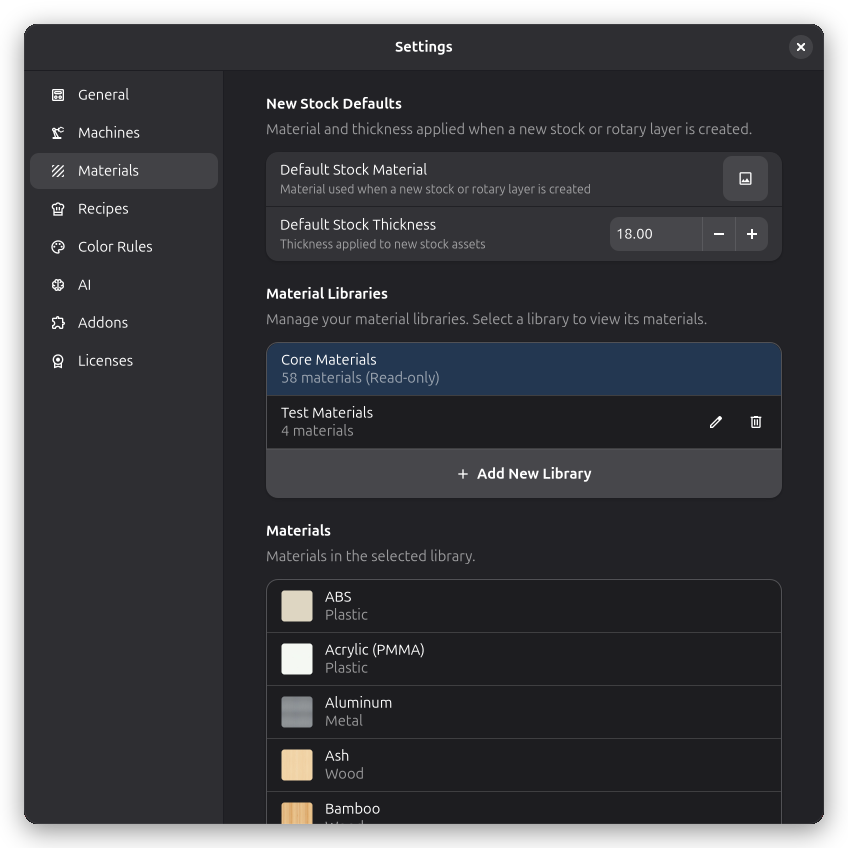
Material libraries in Rayforge allow you to organize and manage collections of materials for your laser cutting and engraving projects. This guide explains the difference between core and user libraries, and how to create your own libraries and add materials to them.
Assigning a material to a stock item affects both its visual appearance in the 2D and 3D canvas and which recipes apply to it: material-specific recipes match against the assigned material. In future releases, materials will be used to derive more functional parameters.
Creating a New Library
To create your own material library:
- Open the Settings menu and select Materials
- Click the Add New Library button to create a new library
- Enter a descriptive name for your library (e.g., "My Workshop Materials")
- Click Create to finalize
Your new library will be created in the user data directory and will be available immediately.
Adding Materials to Libraries
Creating a New Material
- Select the library where you want to add the material
- Click the Add New Material button in the materials list
- Fill in the material properties:
- Name: Human-readable name
- Category: Grouping category (e.g., "Wood", "Acrylic")
- Appearance: Visual properties (see below)
- Click Save to add the material to the library
Material Properties Explained
Name
- Human-readable name displayed in the interface
- Can contain spaces and special characters
Category
- Used for organizing materials within the library
- Common categories include: Wood, Acrylic, Metal, Paper, Leather
- You can create custom categories as needed
Texture
A texture image (WebP or PNG) that is tiled across the material surface. When set, the material
renders with the texture instead of a flat color. Textures can be optimized to WebP with the
scripts/optimize_material_textures.py script to keep material files small.
Texture Scale
The size (in mm) that one texture tile covers on the material. Smaller values repeat the texture more often across the same surface.
Color
An optional tint color. When set, the material's texture is tinted with this color; when unset, the texture is shown as-is. This lets a single textured material (e.g. "Acrylic") cover multiple color variants: the color is applied per stock item in the Stock Properties dialog. The color is only used for visual appearance on the work surface - it does not affect the laser path in any way.
Roughness
A 0-1 value describing how rough or polished the surface appears in the 3D view. Lower values look glossy, higher values look matte.
Metallic
A 0-1 value describing whether the surface reflects light like a metal in the 3D view. Set to 1 for metallic materials, 0 for non-metallic ones.
Absorption
Absorption data drives the physical burn model in the 3D preview.
Per-wavelength absorption coefficients (0–1) describe how much of the laser's energy a material absorbs at a given wavelength. The 3D preview uses these, together with your laser head's wavelength, optical wattage, and spot size, to compute the fluence (J/cm²) delivered and render a physically motivated charring effect on the stock.
Add an absorption block under appearance in the material's YAML:
appearance:
  absorption:
    blue: 0.7 # ~445 nm diode lasers
    ir: 0.25 # ~1064 nm fiber / IR lasers
    co2: 0.9 # ~10600 nm CO2 lasers
  # ...other appearance properties
| Band | Representative wavelength | Typical lasers |
|---|---|---|
blue | 445 nm | Blue diode lasers |
ir | 1064 nm | Fiber lasers |
co2 | 10600 nm | CO2 tube lasers |
When a band is missing, a conservative default is used. The bundled material library ships researched absorption values for all included materials; the burn model is not yet fully calibrated, so contributions of real-world test data are welcome.
Managing Existing Materials
Editing Materials
- Select the material you want to edit
- Click the Edit button
- Modify the desired properties
- Click Save to apply changes
Deleting Materials
- Select the material you want to delete
- Click the Delete button
- Confirm the deletion in the dialog
Deleting a material is permanent and cannot be undone.