


Parametric 2D Sketcher
The Parametric 2D Sketcher is a powerful feature in Rayforge that allows you to create and edit precise, constraint-based 2D designs directly within the application. This feature enables you to design custom parts from scratch without needing external CAD software.
Overview
The sketcher provides a complete set of tools for creating geometric shapes and applying parametric constraints to define precise relationships between elements. This approach ensures your designs maintain their intended geometry even when dimensions are modified.
Creating and Editing Sketches
Creating a New Sketch
- Click the "New Sketch" button in the toolbar or use the main menu
- A new empty sketch workspace will open with the sketch editor interface
- Start creating geometry using the drawing tools from the pie menu or keyboard shortcuts
- Apply constraints to define relationships between elements
- Click "Finish Sketch" to save your work and return to the main workspace
Editing Existing Sketches
- Double-click on a sketch-based workpiece in the main workspace
- Alternatively, select a sketch and choose "Edit Sketch" from the context menu
- Make your modifications using the same tools and constraints
- Click "Finish Sketch" to save changes or "Cancel Sketch" to discard them
Creating 2D Geometry
The sketcher supports creating the following basic geometric elements:
- Paths (Lines and Bezier Curves): Draw straight lines and smooth bezier curves using the unified path tool. Click to place points, drag to create bezier handles.
- Arcs: Draw arcs by specifying a center point, start point, and end point
- Ellipses: Create ellipses (and circles) by defining a center point and
dragging to set the size and aspect ratio. Hold
Ctrlwhile dragging to constrain to a perfect circle. - Rectangles: Draw rectangles by specifying two opposite corners
- Rounded Rectangles: Draw rectangles with rounded corners
- Text Boxes: Add text elements to your sketch. Text content supports parametric template expressions (see Text Templates below).
- Fills: Fill closed regions to create solid areas
These elements form the foundation of your 2D designs and can be combined to create complex shapes. Fills are particularly useful for creating solid regions that will be engraved or cut as a single piece.
Working with Bezier Curves
The path tool supports bezier curves for creating smooth, organic shapes:
Drawing Bezier Curves
- Select the path tool from the pie menu or use the keyboard shortcut
- Click to place points - each click creates a new point
- Drag after clicking to create bezier handles for smooth curves
- Continue adding points to build your path
- Press Escape or double-click to finish the path
Editing Bezier Curves
- Move points: Click and drag any point to reposition it
- Adjust handles: Drag the handle endpoints to modify the curve shape
- Connect to existing points: When editing a path, you can snap to existing points in your sketch
- Make smooth/symmetric: Points connected by a coincident constraint can be made smooth (continuous tangent) or symmetric (mirrored handles)
Converting Curves to Lines
Use the straighten tool to convert bezier curves back to straight lines. This is useful when you need clean, simple geometry. Select the bezier segments you want to convert and apply the straighten action.
Parametric Constraint System
The constraint system is the core of the parametric sketcher, allowing you to define precise geometric relationships:
Geometric Constraints
- Coincident: Forces two points to occupy the same location
- Vertical: Constrains a line to be perfectly vertical
- Horizontal: Constrains a line to be perfectly horizontal
- Tangent: Makes a line tangent to a circle or arc
- Perpendicular: Forces two lines, a line and an arc/circle, or two arcs/circles to meet at 90 degrees
- Point on Line/Shape: Constrains a point to lie on a line, arc, or circle
- Collinear: Forces two or more lines to lie on the same infinite line
- Symmetry: Creates symmetrical relationships between elements. Supports
two modes:
- Point Symmetry: Select 3 points (first is the center)
- Line Symmetry: Select 2 points and 1 line (the line is the axis)
Dimensional Constraints
- Distance: Sets the exact distance between two points or along a line
- Diameter: Defines the diameter of a circle
- Radius: Sets the radius of a circle or arc
- Angle: Enforces a specific angle between two lines
- Aspect Ratio: Forces the ratio between two distances to be equal to a specified value
- Equal Length/Radius: Forces multiple elements (lines, arcs, ellipses, or circles) to have the same length or radius
- Equal Distance: Makes two line segments the same length (different from Equal Length/Radius, which can also apply to arcs and circles)
Pie Menu Interface
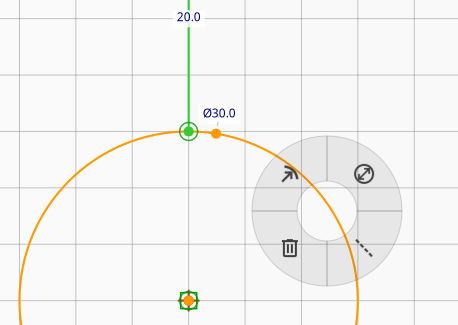
The sketcher features a context-aware pie menu that provides quick access to all drawing and constraint tools. This radial menu appears when you right-click in the sketch workspace and adapts based on your current context and selection.
The pie menu items dynamically show available options based on what you have selected. For example, when clicking on empty space, you'll see drawing tools. When clicking on selected geometry, you'll see applicable constraints.
Keyboard Shortcuts
The sketcher provides keyboard shortcuts for efficient workflow:
Tool Shortcuts
Space: Select toolG+P: Path tool (lines and bezier curves)G+A: Arc toolG+C: Ellipse toolG+R: Rectangle toolG+O: Rounded Rectangle toolG+F: Fill Area toolG+T: Text Box toolG+G: Grid tool (toggle grid visibility)G+N: Toggle construction mode on selection
Action Shortcuts
C+H: Add Chamfer cornerC+F: Add Fillet cornerC+S: Straighten selected bezier curves to lines
Constraint Shortcuts
H: Apply Horizontal constraintV: Apply Vertical constraintN: Apply Perpendicular constraintT: Apply Tangent constraintE: Apply Equal constraintOorC: Apply Alignment constraint (Coincident)S: Apply Symmetry constraintK+D: Apply Distance constraintK+R: Apply Radius constraintK+O: Apply Diameter constraintK+A: Apply Angle constraintK+X: Apply Aspect Ratio constraint
General Shortcuts
Ctrl+Z: UndoCtrl+YorCtrl+Shift+Z: RedoDelete: Delete selected elementsEscape: Cancel current operation or deselectF: Fit view to content
Construction Mode
Construction mode allows you to mark entities as "construction geometry" - helper elements used to guide your design but not part of the final output. Construction entities are displayed differently (typically as dashed lines) and are not included when the sketch is used for laser cutting or engraving.
To toggle construction mode:
- Select one or more entities
- Press
NorG+N, or use the Construction option in the pie menu
Construction entities are useful for:
- Creating reference lines and circles
- Defining temporary geometry for alignment
- Building complex shapes from a framework of guides
Grid, Snapping, and Visibility Controls
Grid Tool
The grid tool provides a visual reference for alignment and sizing:
- Toggle the grid on/off using the grid tool button or
G+G - The grid adapts to your zoom level for consistent spacing
Magnetic Snap
While creating or moving geometry, Rayforge automatically pulls your cursor toward nearby elements — endpoints, line midpoints, intersections, and other reference points. This makes it easy to connect shapes precisely without manually placing every point. The snap indicator highlights when your cursor is close to a snap target.
Auto-Constrain During Creation
Many drawing tools automatically apply constraints as you create geometry. For example, when drawing a line near the horizontal or vertical, the sketcher will offer to lock it in place. The path tool also creates horizontal and vertical constraints automatically when snap guides show alignment during drawing. This helps keep your sketch tidy from the start, rather than fixing things up afterward.
Show/Hide Controls
The sketcher toolbar includes toggle buttons to control visibility:
- Show/hide construction geometry: Toggle visibility of construction entities
- Show/hide constraints: Toggle visibility of constraint markers
These controls help reduce visual clutter when working on complex sketches.
Axis-Constrained Movement
When dragging points or geometry, hold Shift to constrain movement to the
nearest axis (horizontal or vertical). This is useful for maintaining alignment
while making adjustments.
Chamfer and Fillet
The sketcher provides tools to modify corners of your geometry:
- Chamfer: Replaces a sharp corner with a beveled edge. Select a junction point (where two lines meet) and apply the chamfer action.
- Fillet: Replaces a sharp corner with a rounded edge. Select a junction point (where two lines meet) and apply the fillet action.
To use chamfer or fillet:
- Select a junction point where two lines meet
- Press
C+Hfor chamfer orC+Ffor fillet - Use the pie menu or keyboard shortcuts to apply the modification
Text Templates
Text boxes support template expressions enclosed in curly braces. These are resolved at solve time using the current parameter values, so the text updates automatically when you change a dimension or input variable.
Variable Substitution
Reference any sketch parameter or input variable by name:
{width}-- the current value of the "width" parameter{name}-- the value of a string-type input parameter{count:.0f}-- formatted with a Python format specifier (no decimals)
Math Expressions
You can use math functions inside templates:
{sqrt(area):.2f}-- square root of "area", formatted to 2 decimals{width * 2}-- arithmetic expressions
The standard math functions (sqrt, sin, cos, tan, pi, etc.) are
available.
Built-in Functions
{today()}-- today's date (e.g.,2026-05-01){now()}-- current date and time{uuid4()}-- a unique 8-character hex string, regenerated on each solve
These are useful for date-stamping parts or generating unique serial numbers for production labeling.
Example Use Cases
Part #{uuid4()}-- unique serial number on each solveW={width:.1f} H={height:.1f}-- live dimension labelsDate: {today()}-- date-stamp each piece{name} - {count:.0f}pcs-- combine string and numeric parameters
Import and Export
Exporting Objects
You can export any selected workpiece to various vector formats:
- Select a workpiece on the canvas
- Choose Object → Export Object... (or right-click and select from context menu)
- Choose the export format:
- RFS (.rfs): Rayforge's native parametric sketch format - preserves all constraints and can be re-imported for editing
- SVG (.svg): Standard vector format - widely compatible with design software
- DXF (.dxf): CAD interchange format - compatible with most CAD applications
Saving Sketches
You can save your 2D sketches to files for reuse in other projects. All parametric constraints are preserved when saving, ensuring your designs maintain their geometric relationships.
Importing Sketches
Saved sketches can be imported into any workspace, allowing you to create a library of commonly used design elements. The import process maintains all constraints and dimensional relationships.
Workflow Tips
- Start with Rough Geometry: Create basic shapes first, then refine with constraints
- Use Constraints Early: Apply constraints as you build to maintain design intent
- Check Constraint Status: The system indicates when sketches are fully constrained
- Watch for Conflicts: Constraints that conflict with each other are highlighted in red and shown in the constraints panel for easy identification
- Utilize Symmetry: Symmetry constraints can significantly speed up complex designs
- Use the Grid: Enable the grid for precise alignment, and use Ctrl to snap to grid
- Iterate and Refine: Don't hesitate to modify constraints to achieve the desired result
Editing Features
- Full Undo/Redo Support: The entire sketch state is saved with each operation
- Dynamic Cursor: The cursor changes to reflect the active drawing tool
- Constraint Visualization: Applied constraints are clearly indicated in the interface
- Real-time Updates: Changes to constraints immediately update the geometry
- Double-Click Editing: Double-click on dimensional constraints (Distance, Radius, Diameter, Angle, Aspect Ratio) opens a dialog to edit their values
- Parametric Expressions: Dimensional constraints support expressions,
allowing values to be calculated from other parameters (e.g.,
width/2for a radius that's half the width)