Simulation Mode

Simulation Mode

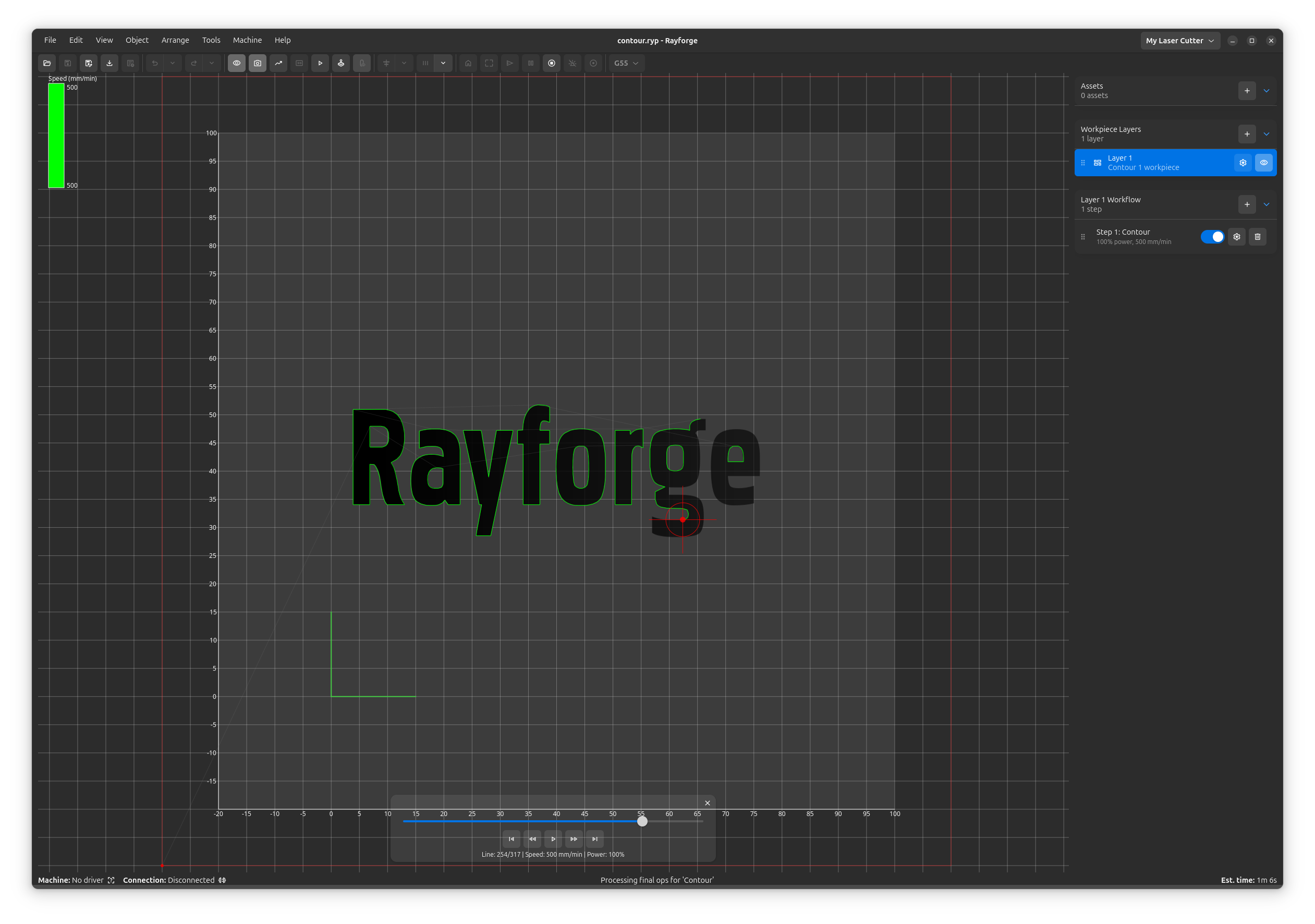
Simulation Mode provides real-time visualization of your laser job execution before you run it on the actual machine. It shows execution order, speed variations, and power levels through an interactive overlay in the 2D view.

Overview

Simulation Mode helps you:

  • Visualize execution order - See the exact sequence operations will run
  • Identify speed variations - Color heatmap shows slow (blue) to fast (red) movements
  • Check power levels - Transparency indicates power (faint=low, bold=high)
  • Validate material tests - Confirm test grid execution order
  • Catch errors early - Spot issues before wasting material
  • Understand timing - See how long different operations take

Activating Simulation Mode

There are three ways to enter Simulation Mode:

Method 1: Keyboard Shortcut

Press f7 to toggle simulation mode on/off.

Method 2: Menu

  • Navigate to View → Simulate Execution
  • Click to toggle on/off

Method 3: Toolbar (if available)

  • Click the simulation mode button in the toolbar
2D View Only

Simulation mode works in 2D view. If you're in 3D view (f6), switch to 2D view (f5) first.

Understanding the Visualization

Speed Heatmap

Operations are colored based on their speed:

ColorSpeedMeaning
🔵 BlueSlowestMinimum speed in your job
🔵 CyanSlowBelow average speed
🟢 GreenMediumAverage speed
🟡 YellowFastAbove average speed
🔴 RedFastestMaximum speed in your job

The heatmap is normalized to your job's actual speed range:

  • If your job runs 100-1000 mm/min, blue=100, red=1000
  • If your job runs 5000-10000 mm/min, blue=5000, red=10000

Power Transparency

Line opacity indicates laser power:

  • Faint lines (10% opacity) = Low power (0%)
  • Translucent (50% opacity) = Medium power (50%)
  • Solid lines (100% opacity) = Full power (100%)

This helps identify:

  • Travel moves (0% power) - Very faint
  • Engraving operations - Moderate opacity
  • Cutting operations - Solid, bold lines

Laser Head Indicator

The laser position is shown with a crosshair:

  • 🔴 Red crosshair (6mm lines)
  • Circle outline (3mm radius)
  • Center dot (0.5mm)

The indicator moves during playback, showing exactly where the laser is in the execution sequence.

Playback Controls

When simulation mode is active, playback controls appear at the bottom of the canvas:

Play/Pause Button

  • ▶️ Play: Starts automatic playback
  • ⏸️ Pause: Stops at current position
  • Auto-play: Playback starts automatically when you enable simulation mode

Progress Slider

  • Drag to scrub through the execution
  • Click to jump to a specific point
  • Shows current step / total steps
  • Supports fractional positions for smooth scrubbing

Speed Range Display

Shows the minimum and maximum speeds in your job:

Speed range: 100 - 5000 mm/min

This helps you understand the heatmap colors.

Using Simulation Mode

Validating Execution Order

Simulation shows the exact order operations will execute:

  1. Enable simulation mode (f7)
  2. Watch the playback
  3. Verify operations run in the expected sequence
  4. Check that cuts happen after engraving (if applicable)

Example: Material test grid

  • Observe risk-optimized order (fastest speeds first)
  • Confirm low-power cells execute before high-power
  • Validate test runs in safe sequence

Checking Speed Variations

Use the heatmap to identify speed changes:

  • Consistent color = Uniform speed (good for engraving)
  • Color changes = Speed variations (expected at corners)
  • Blue areas = Slow movements (check if intentional)

Estimating Job Time

Playback duration is scaled to 5 seconds for the full job:

  • Watch the playback speed
  • Estimate actual time: If playback feels smooth, job will be quick
  • If playback jumps rapidly, job has many small segments
Actual Time

For actual job time during execution (non-simulation), check the right section of the status bar after generating G-code.

Debugging Material Tests

For material test grids, simulation shows:

  1. Execution order - Verify cells run fastest→slowest
  2. Speed heatmap - Each column should be a different color
  3. Power transparency - Each row should have different opacity

This helps confirm the test will run correctly before using material.

Editing While Simulating

Unlike many CAM tools, Rayforge lets you edit workpieces during simulation:

  • Move, scale, rotate objects ✅
  • Change operation settings ✅
  • Add/remove workpieces ✅
  • Zoom and pan ✅

Auto-update: Simulation automatically refreshes when you change settings.

No Context Switching

You can stay in simulation mode while editing - no need to toggle back and forth.

Tips & Best Practices

When to Use Simulation

Always simulate before:

  • Running expensive materials
  • Long jobs (>30 minutes)
  • Material test grids
  • Jobs with complex execution orders

Use simulation to:

  • Verify operation order
  • Check for unexpected travel moves
  • Validate speed/power settings
  • Train new users

Reading the Visualization

Look for:

  • Consistent colors within operations (good)
  • Smooth transitions between segments (good)
  • Unexpected blue areas (investigate - why so slow?)
  • Faint lines in cutting areas (wrong - check power settings)

⚠️ Red flags:

  • Cutting before engraving (workpiece may move)
  • Very long blue (slow) sections (inefficient)
  • Power changes mid-operation (check settings)

Performance Tips

  • Simulation updates automatically on changes
  • For very complex jobs (1000+ operations), simulation may slow down
  • Disable simulation (f7) when not needed for better performance

Keyboard Shortcuts

ShortcutAction
f7Toggle simulation mode on/off
f5Switch to 2D view (required for simulation)
spacePlay/Pause playback
leftStep backward
rightStep forward
homeJump to start
endJump to end