


Projector Mode
Projector Mode displays your cutting area on a separate window, designed to be shown on an external projector or secondary monitor. This lets you see exactly where the laser will cut by projecting the toolpaths directly onto your material, making alignment straightforward.
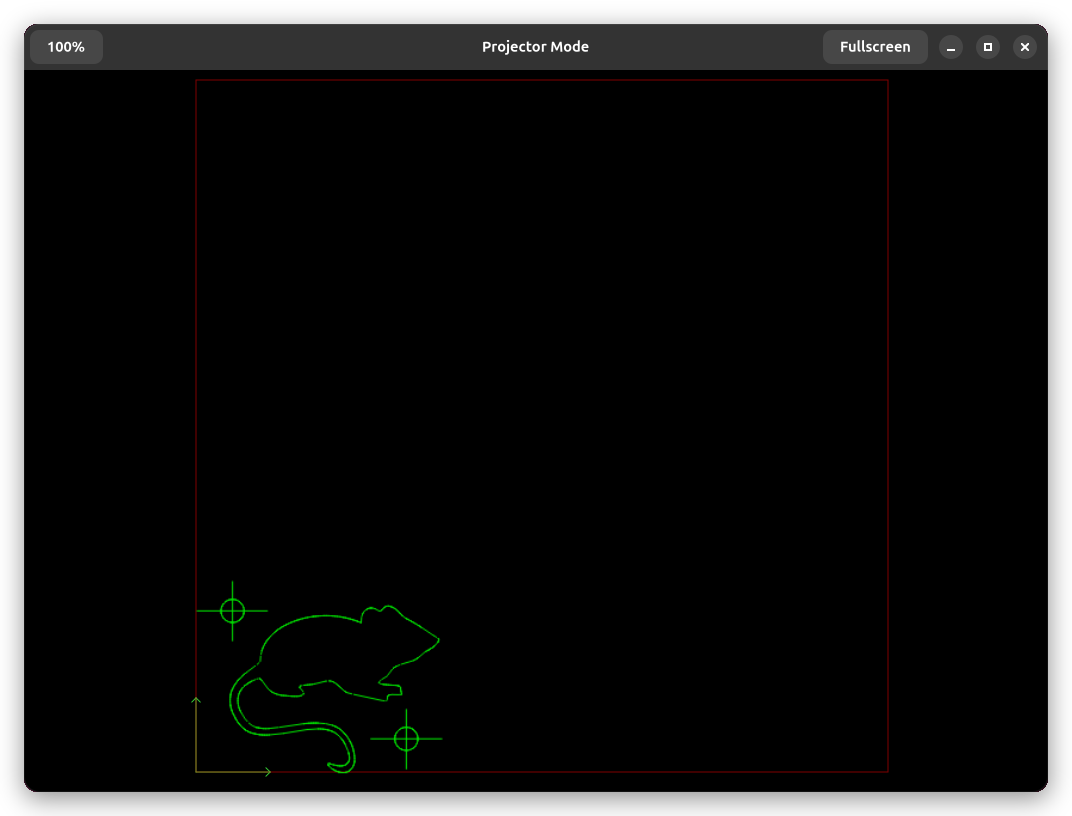
The projector window shows your workpieces rendered in bright green against a black background. It displays the machine's axis extent frame and work origin so you can see the full cutting area and where the origin point is. The view updates in real time as you move or modify workpieces on the main canvas.
Opening the Projector Window
Open the projector window from View - Show Projector Dialog. The window opens as a separate, independent window that you can drag to any display connected to your system.
A toggle controls the projector window — the same menu item closes it, and pressing Escape while the projector window is focused also closes it.
Fullscreen Mode
Click the Fullscreen button in the projector window's header bar to enter fullscreen mode. This hides the window decorations and fills the entire display. Click Exit Fullscreen (the same button) to return to windowed mode.
Fullscreen is the intended mode when projecting onto material, as it removes distracting window chrome and uses the entire display surface.
Opacity
The opacity button in the header bar cycles through four levels: 100%, 80%, 60%, and 40%. Lowering the opacity makes the projector window semi-transparent, which can be useful on a desktop monitor to see through to windows behind it. Each click advances to the next opacity level and wraps back around.
What the Projector Shows
The projector display renders a simplified view of your document. Workpieces appear as bright green outlines showing the computed toolpaths — the same paths that will be sent to the laser. The base images of your workpieces are not shown, keeping the display focused on the cutting paths.
The machine extent frame appears as a border representing the full travel area of your machine's axes. The work origin arrows show where the coordinate system origin is located within that area. Both update automatically if you change the work coordinate system offset on your machine.
Related Topics
- Coordinate Systems - Understand machine coordinates and work offsets
- Workpiece Positioning - Position workpieces on the canvas