


Image Editing
The Image Editing addon changes how a workpiece's image looks without touching the imported file. Each edit is stored with the workpiece, so you can undo it, remove it later, or place the same file several times with different edits.
The canvas, the 3D preview and every operation use the edited image. What you see on the canvas is what the laser engraves.
Invert Image
Select one or more workpieces and choose Tools - Invert Image. Light areas become dark and dark areas become light; transparent areas stay transparent, so the background is still not engraved.
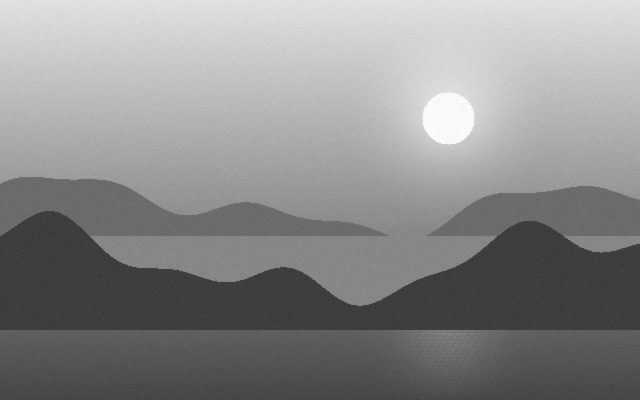
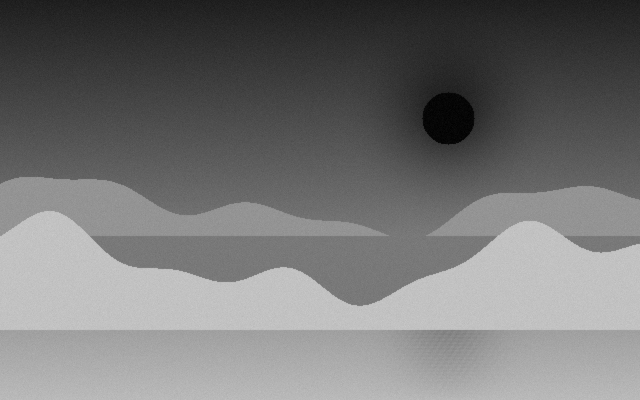
Choose it again to remove the inversion. With a mixed selection, the workpieces that are not inverted yet get inverted, so the whole selection ends up the same.
Use it for lithophanes and embossing in an Engrave operation, where light areas should be engraved deep, or to engrave light artwork on a dark background.
Older Projects
Before this addon, Invert was a setting of the Engrave operation. When you open an older project that used it, Rayforge moves the setting to the workpieces of that layer, so the output stays the same.
When the Addon Is Disabled
A project keeps its image edits when the addon is disabled or not installed. Rayforge tells you that the project uses features that are not available and shows the images without those edits until the addon is enabled again.