Main Window
The Rayforge main window is your primary workspace for creating and managing laser jobs.
Window Layout
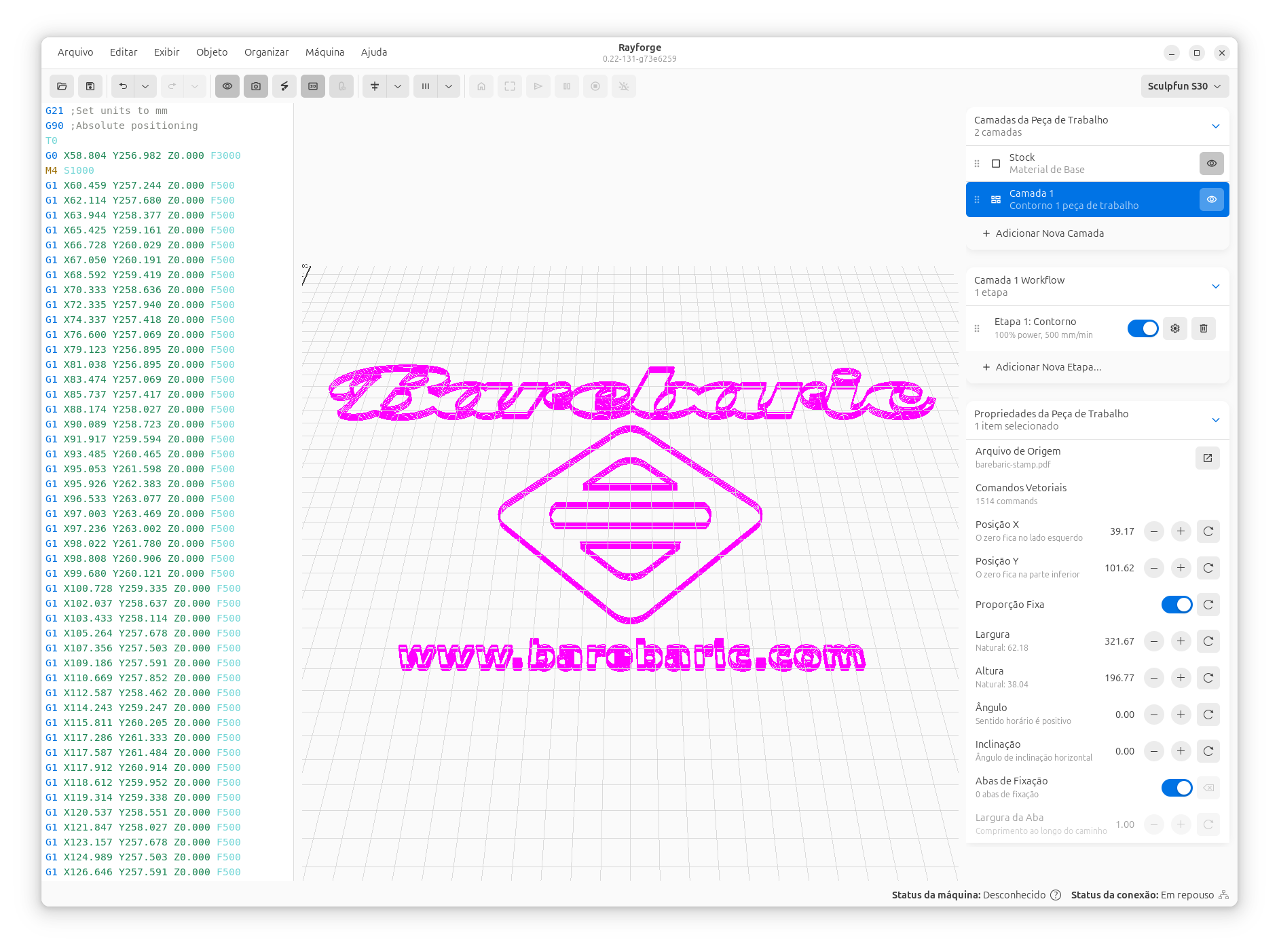
1. Menu Bar
Access all Rayforge functions through organized menus:
- File: Open, save, import, export, and recent files
- Edit: Undo, redo, copy, paste, preferences
- View: Zoom, grid, rulers, panels, and view modes
- Operations: Add, edit, and manage operations
- Machine: Connect, jog, home, start/stop jobs
- Help: Documentation, about, and support
2. Toolbar
Quick access to frequently used tools:
- Selection tool: Select and move objects
- Pan tool: Navigate the canvas
- Zoom tool: Zoom in/out on specific areas
- Measurement tool: Measure distances and angles
- Alignment tools: Align and distribute objects
3. Canvas
The main workspace where you:
- Import and arrange designs
- Preview toolpaths
- Position objects relative to machine origin
- Test frame boundaries
Canvas Controls:
- Pan: Middle-click drag or Space + drag
- Zoom: Mouse wheel or Ctrl++ / Ctrl+-
- Reset View: Ctrl+0 or View → Reset Zoom
4. Layers Panel
Manage operations and layer assignments:
- View all operations in your project
- Assign operations to design elements
- Reorder operation execution
- Enable/disable individual operations
- Configure operation parameters
5. Properties Panel
Configure settings for selected objects or operations:
- Operation type (Contour, Raster, etc.)
- Power and speed settings
- Number of passes
- Advanced options (overscan, kerf, tabs)
6. Status Bar
Monitor real-time information organized in three sections:
- Left Section: Connection status and machine status
- Middle Section: Status messages for ongoing tasks
- Right Section: Progress of current job execution and total execution time estimate for current document
Window Management
Panels
Show/hide panels as needed:
- Layers Panel: View → Layers Panel (Ctrl+L)
- Properties Panel: View → Properties Panel (Ctrl+I)
Full Screen Mode
Focus on your work with full screen:
- Enter: F11 or View → Full Screen
- Exit: F11 or Esc
Customization
Customize the interface in Edit → Preferences:
- Theme: Light, dark, or system
- Units: Millimeters or inches
- Grid: Show/hide and configure grid spacing
- Rulers: Show/hide rulers on canvas
- Toolbar: Customize visible buttons
Next: Canvas Tools →