


Barcodes
The Barcodes addon adds QR codes, Code 128 and EAN-13 as reusable assets. A barcode is drawn as vector outlines with a fill, so an Engrave operation engraves it cleanly and a Contour operation can still trace it.
Adding a Barcode
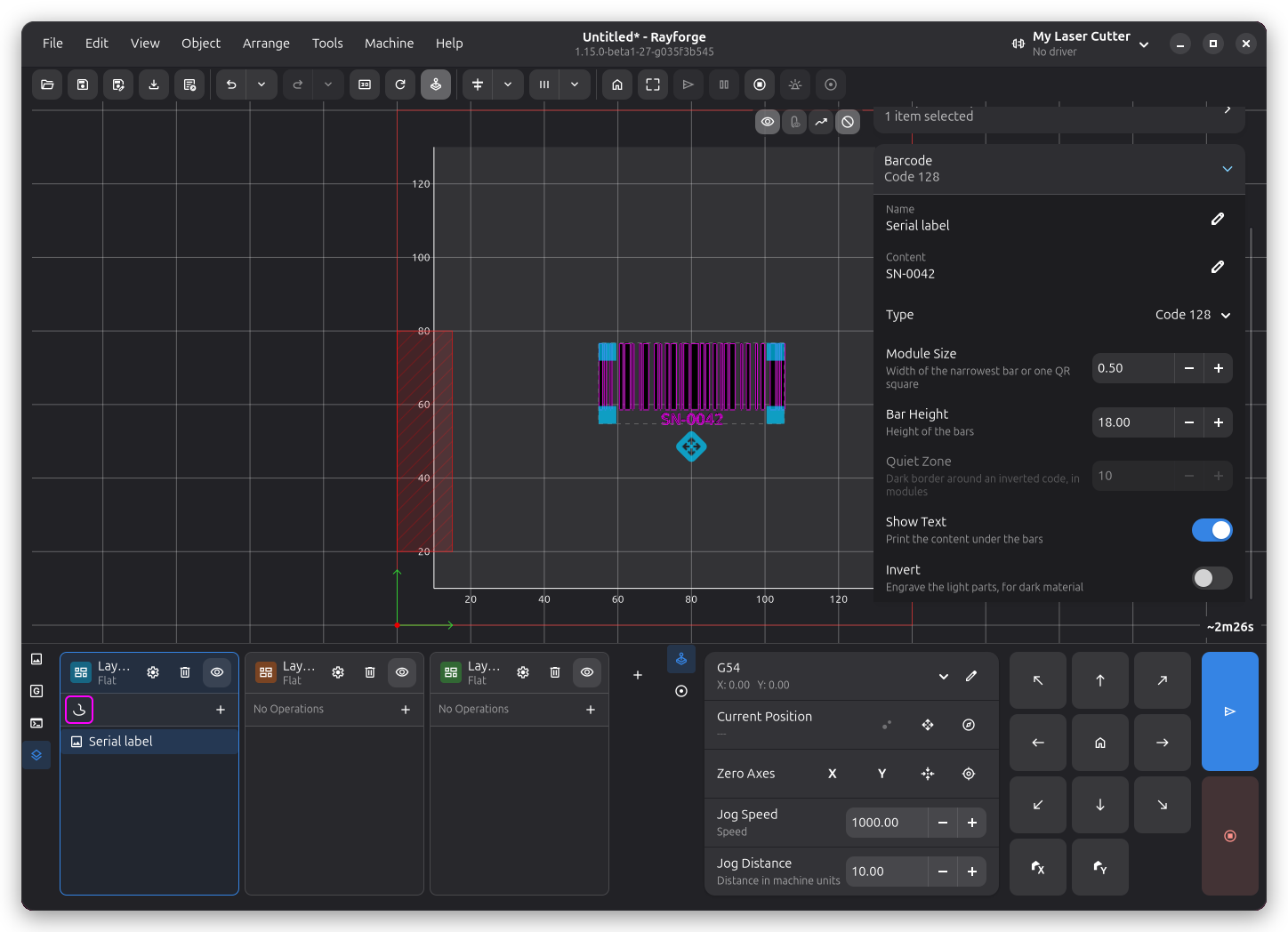
Choose Object - Add Barcode. A QR code appears in the middle of the work area and is selected. Edit it in the Barcode group of the properties panel:
- Name — the asset name shown in the asset browser.
- Content — the text to encode. Press
Enteror the apply button to update the code. - Type — QR Code, Code 128 or EAN-13.
- Error Correction (QR) — how much of the code may be damaged and still read: Low, Medium, Quartile or High. Higher levels make the code larger.
- Module Size — the width of the narrowest bar, or of one QR square. Module Size and Bar Height are shown in your chosen length unit. The workpiece takes the size of the code, so this is the setting that sizes it.
- Bar Height (Code 128, EAN-13) — the height of the bars.
- Show Text (Code 128, EAN-13) — prints the content under the bars. EAN-13 uses its usual layout, with the guard bars reaching into the digits.
- Invert — engraves the light parts instead, for dark material: the code becomes light on a dark border. Quiet Zone sets that border in modules and can only be changed while Invert is on; it defaults to the minimum the type needs.
The Asset Browser
Every barcode is also an asset. Open the asset browser in the bottom panel to see all barcodes in the project:
- Add (
+) creates a barcode asset without placing it. Use Create New Workpiece, drag it onto the canvas, or double-click the card to place a centered instance. - Double-clicking a barcode workpiece on the canvas selects it and shows its Barcode properties.
- Duplicate, copy, cut and delete work like they do for other assets.
Changing a barcode asset updates every placed copy. Use templates when the copies should differ.
Leave a clear margin around a code that is not inverted: 4 modules for QR codes, 10 for Code 128 and 9 for EAN-13.
Types
- QR Code holds any text, including links.
- Code 128 holds printable ASCII. Runs of digits are packed in pairs automatically.
- EAN-13 takes 12 digits, and the check digit is added. With 13 digits the check digit is verified. The content field turns red when the content does not fit the type; hover over it to see why.
Templates
The content can contain {...} expressions like a text box, for example {2 * 21}. With the
Job Counter, SN-{counter:05d} gives every piece its own number, and
array copies count up.